
Fiat currencies
Crypto Currencies
No results for ""
We couldn't find anything matching your search.Try again with a different term.
BigONE Account Security Setup Guidelines

To protect the safety and security of user accounts and funds, you will need to complete the corresponding security settings before withdrawing funds, and complete the corresponding verification of security when withdrawing funds. You need to complete the following setups:
Binding phone number and two-step verification (Google Authentication).
- The security verification needs to be done according to the actual situation when withdrawing funds, and you need to complete the binding settings of phone number or two-step verification before setting the asset password.
Asset Password
- The asset password will be verified when withdrawing funds and making C2C transactions.
How to bind your phone number
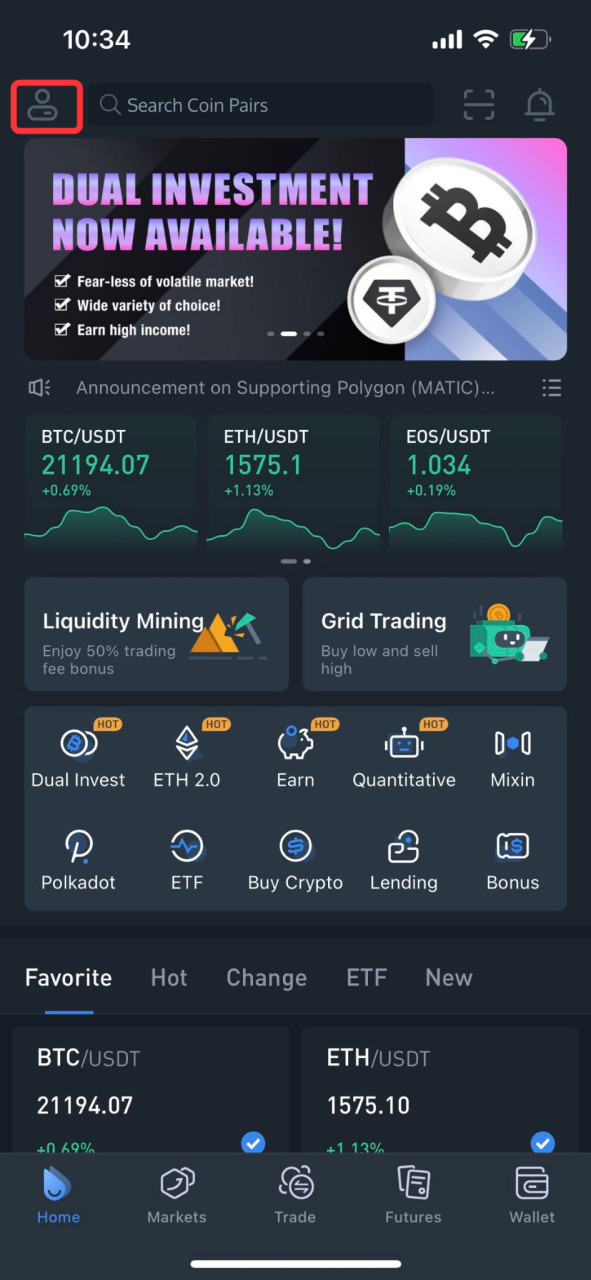
Log in to your BigONE account and click on the Personal button in the top left corner.
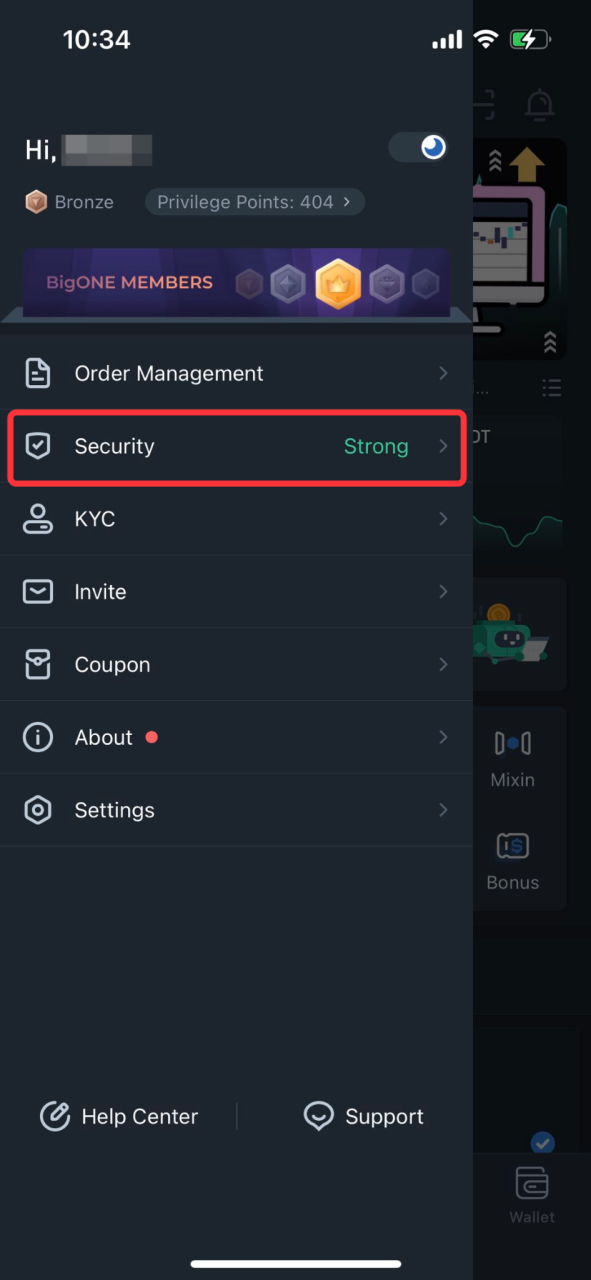
Go to Security
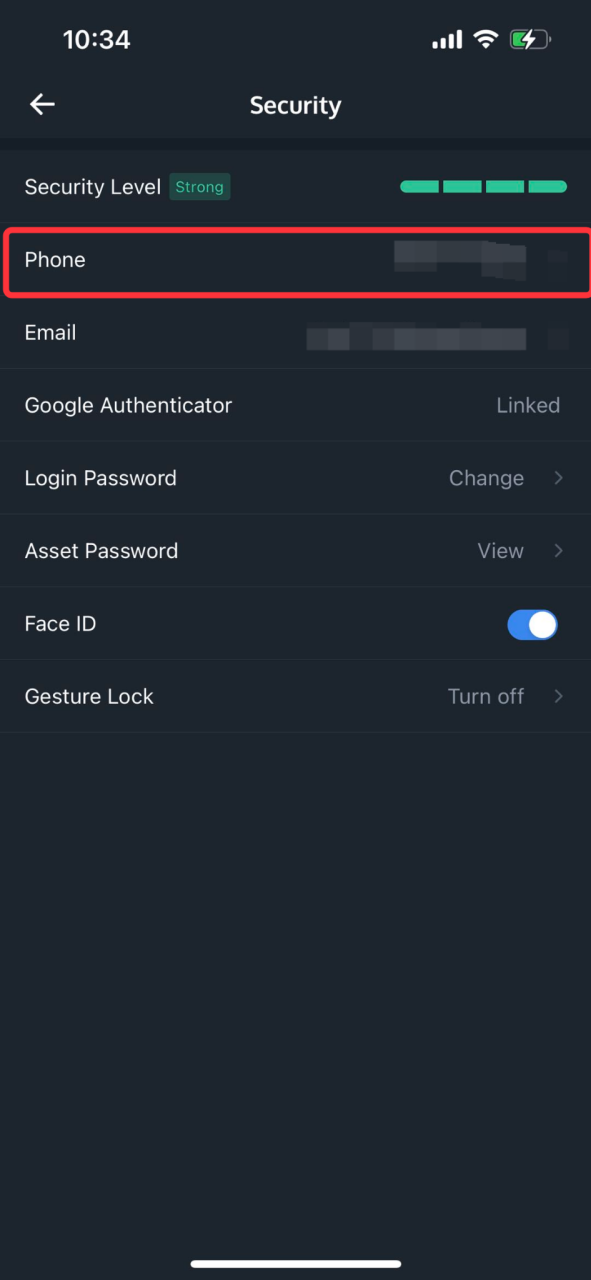
Click Phone
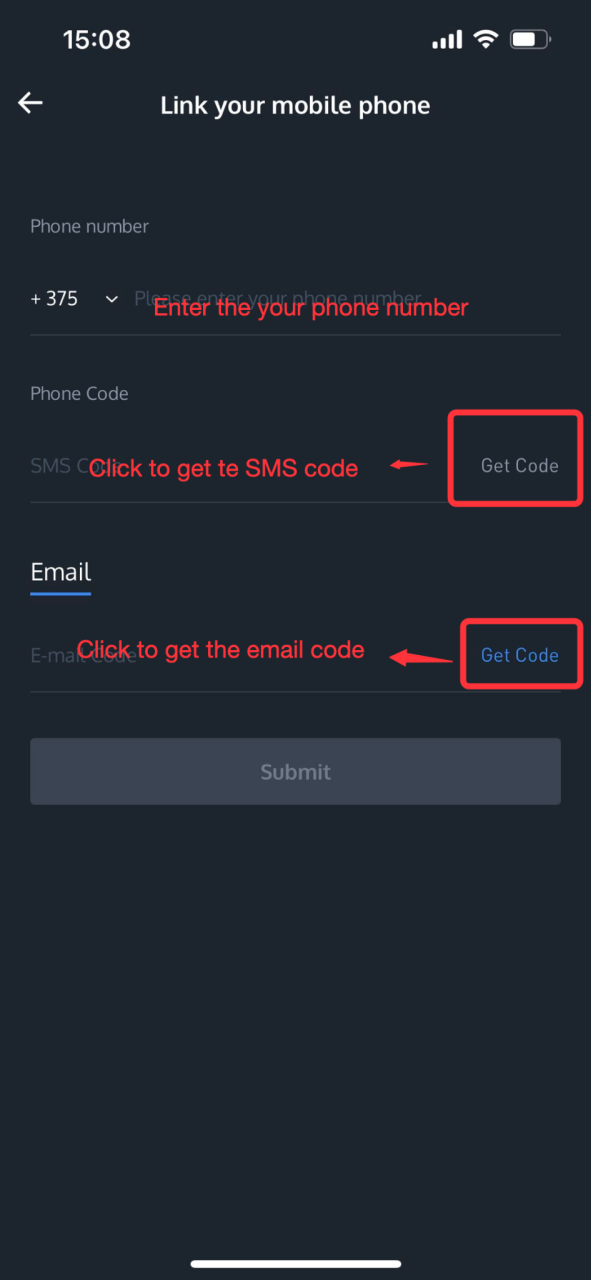
Follow the steps to fill in the phone number you want to bind, fill in the phone verification code and email verification code, click "Submit" to complete the cell phone binding.
How to bind Google Authentication
Log in to your BigONE account and click on the Personal button in the top left corner.
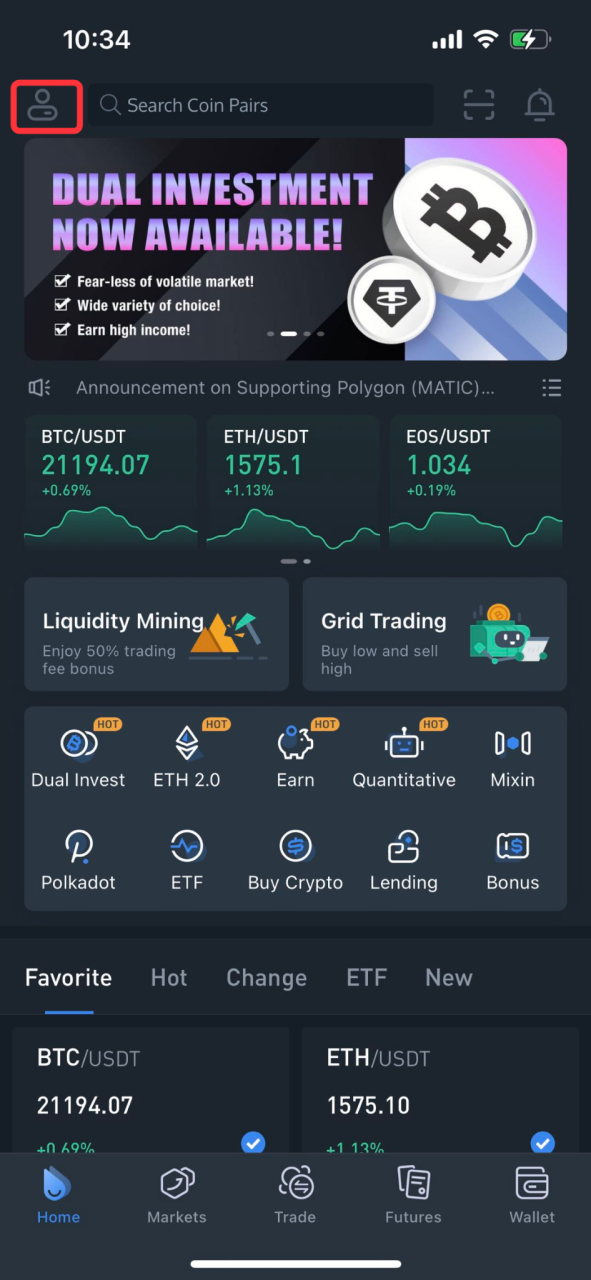
Go to Security
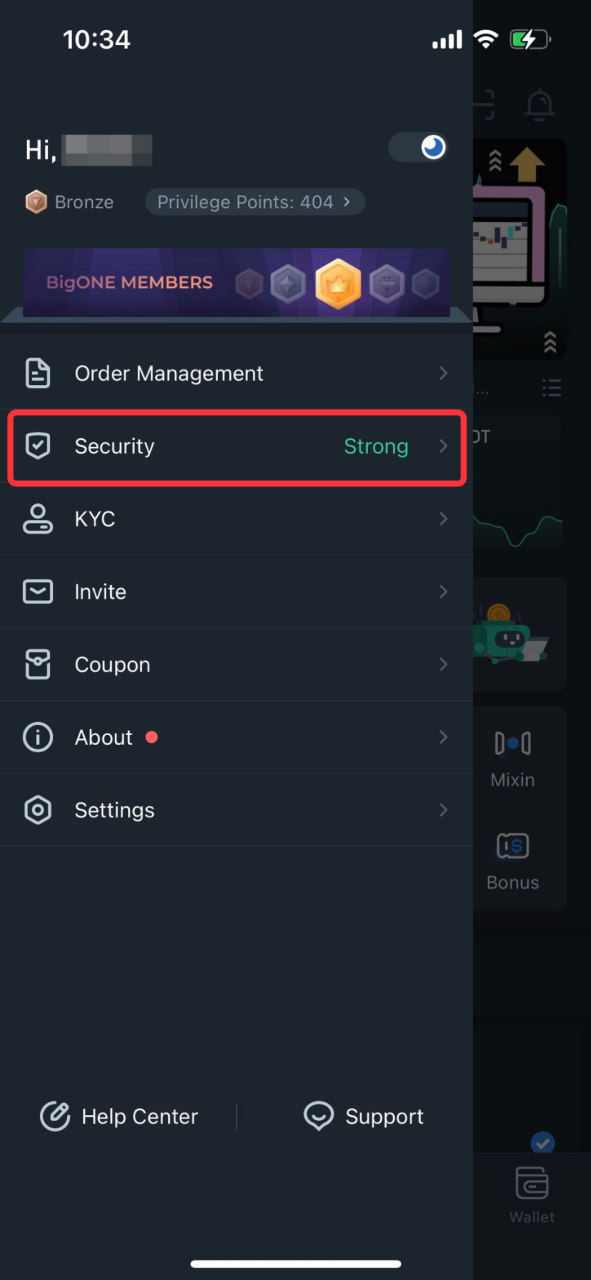
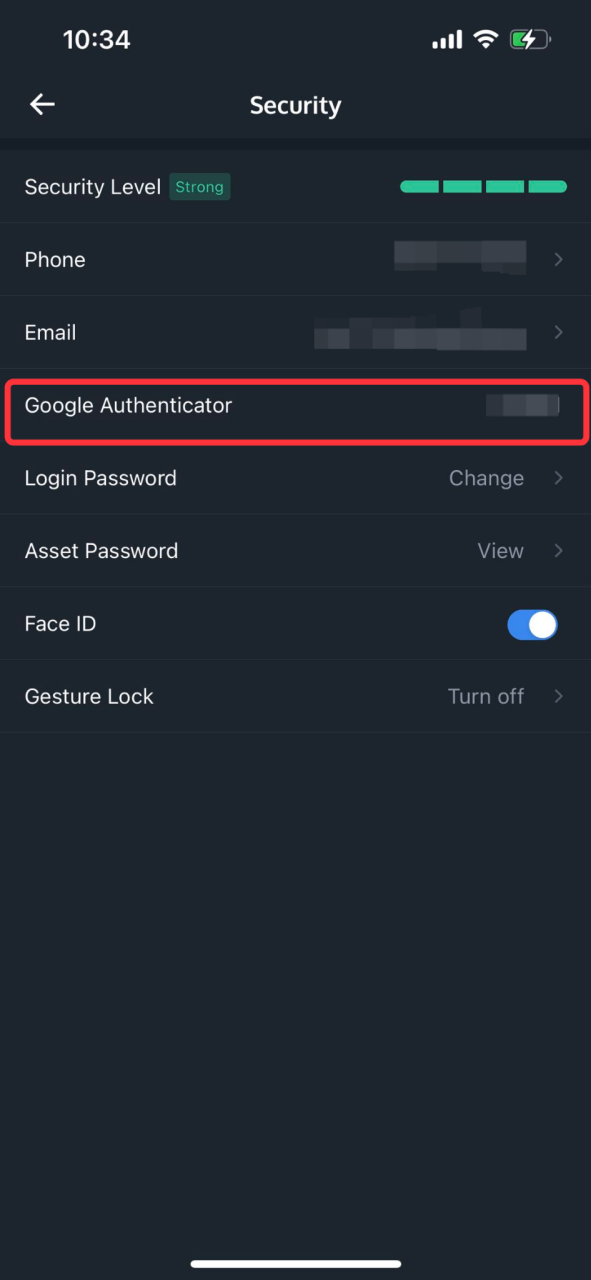
Click on Google Authenticator
Copy the setup key
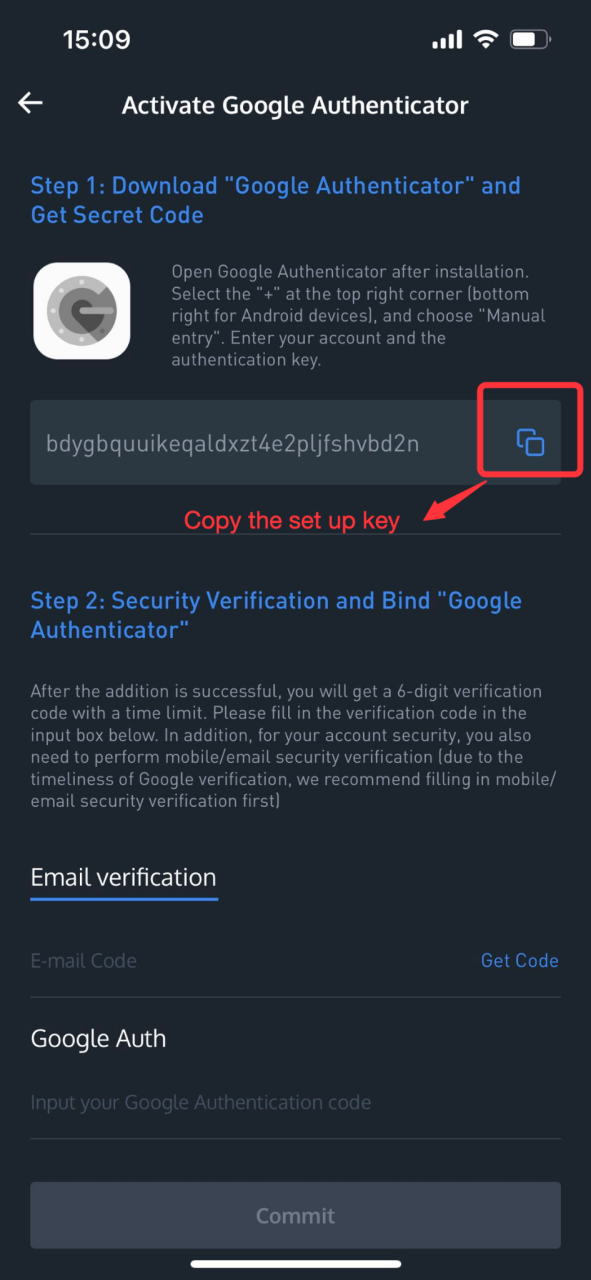
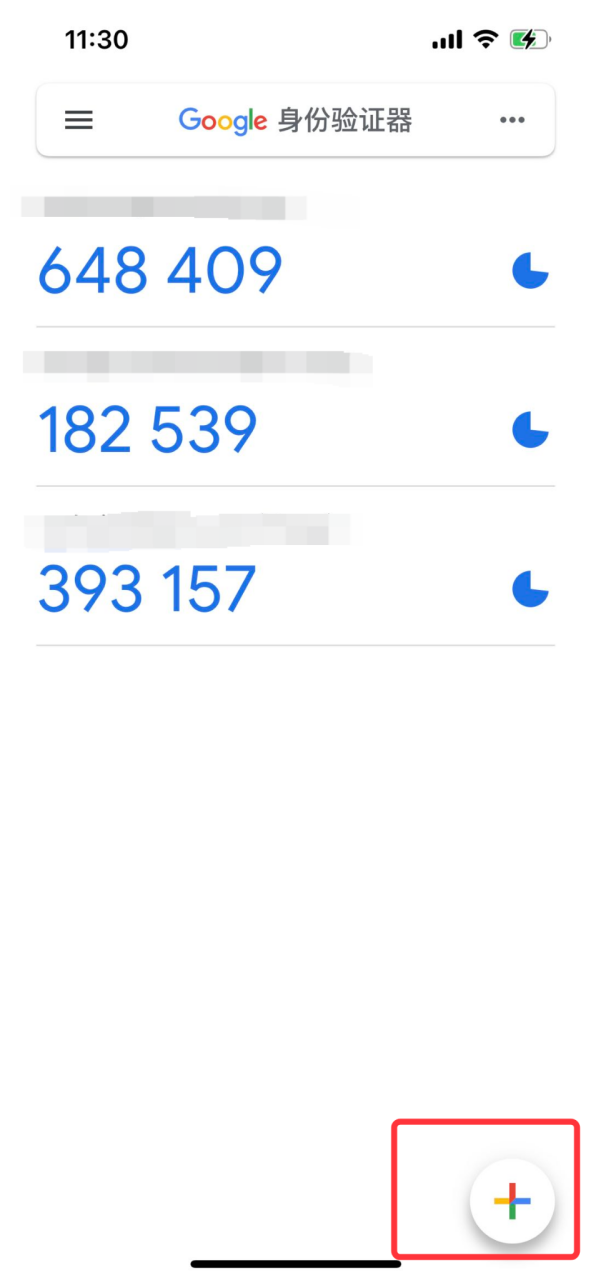
Go to Google Authenticator and click on the " " sign at the bottom right corner and select "Enter a setup key"
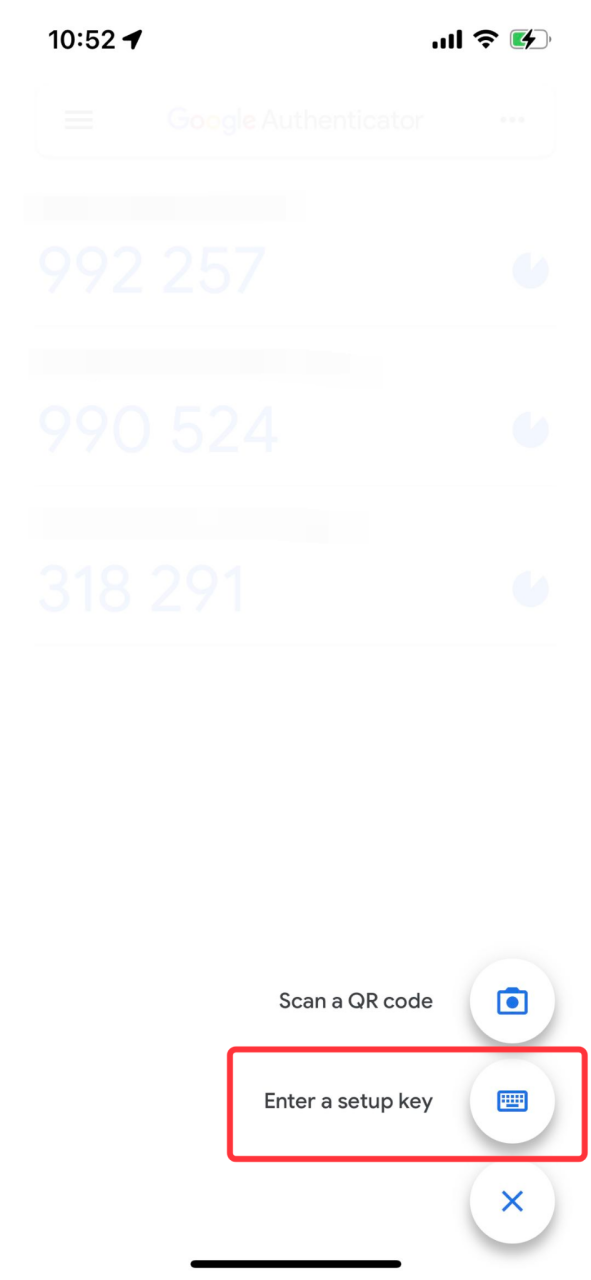
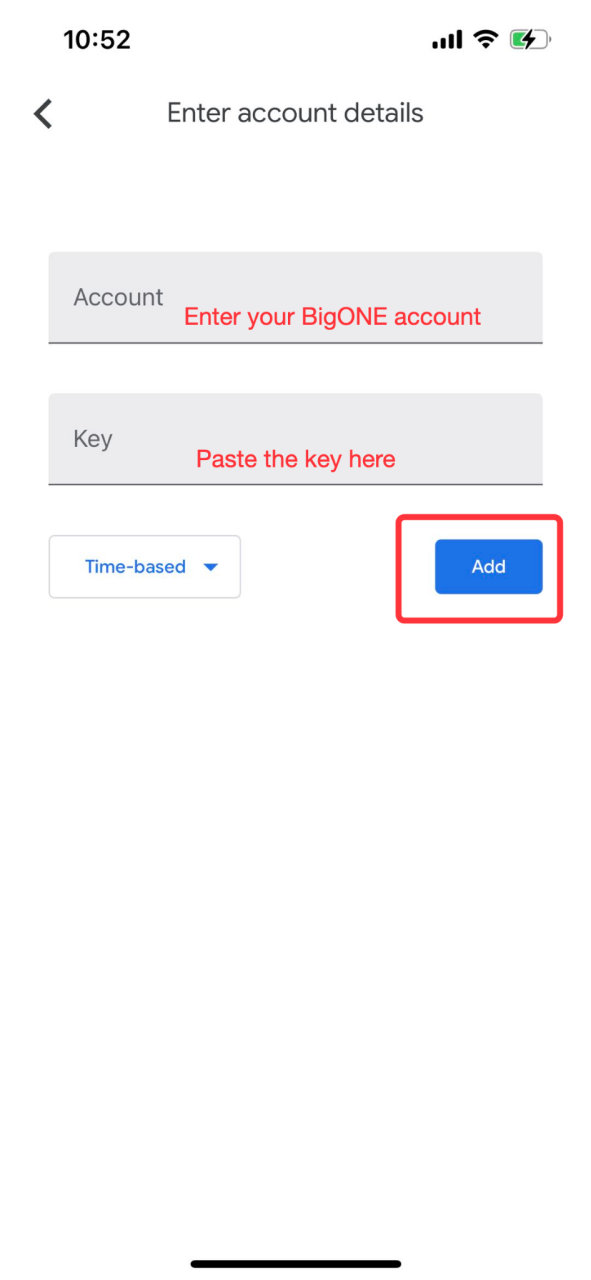
In Google Authentication, follow the steps to fill in the BigONE account and paste the key, then click "Add".
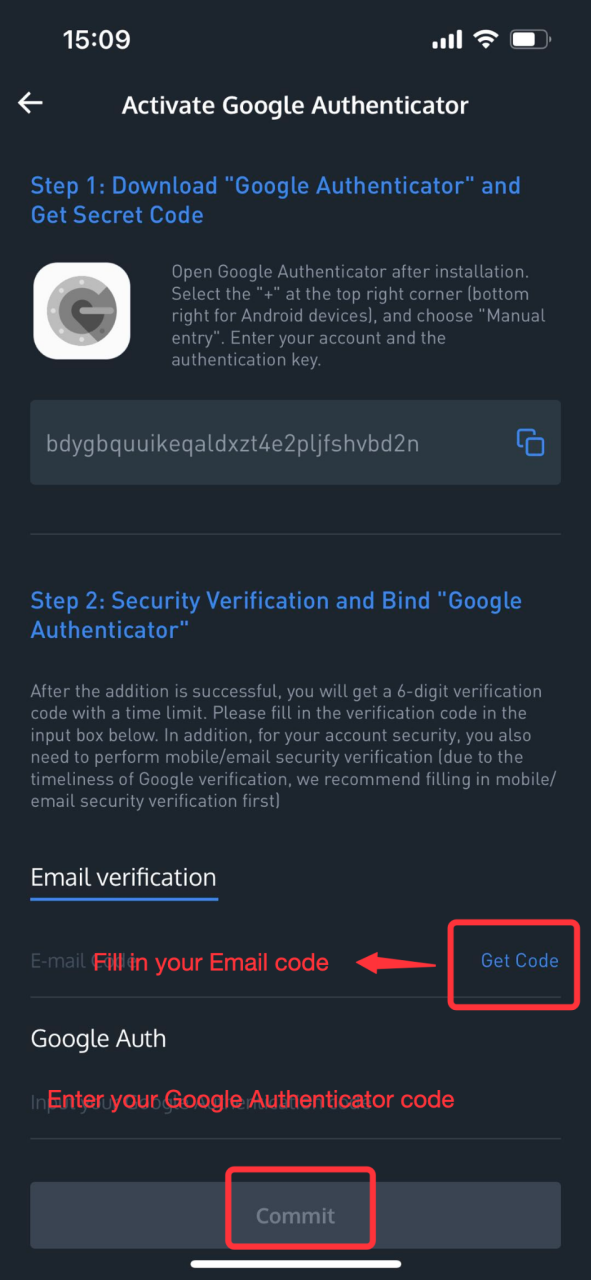
Enter the email verification code and Google Authenticator verification code on the BigONE Google Authenticator verification page and click "Submit" to complete the Google verification binding.
Asset password setting
The asset password will be verified when withdrawing funds and making C2C transactions. Note that you need to bind your phone number or two-step verification (Google Authentication) before setting your asset password.
How to set your asset password
- Log in to your BigONE account and click on the Personal button in the top left corner
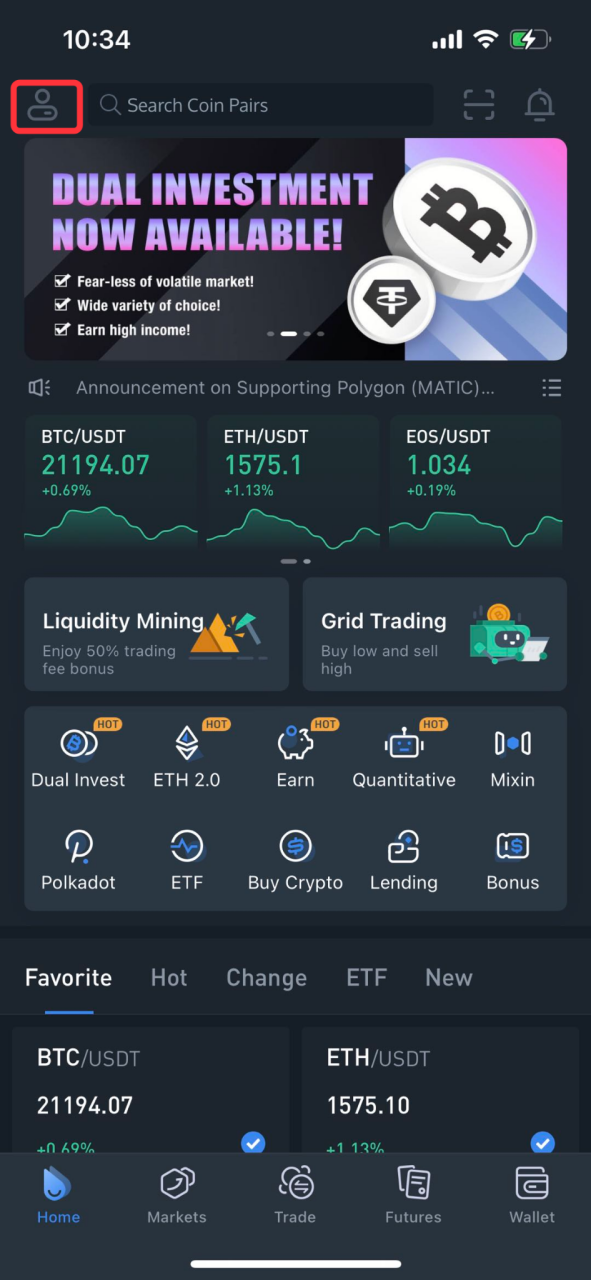
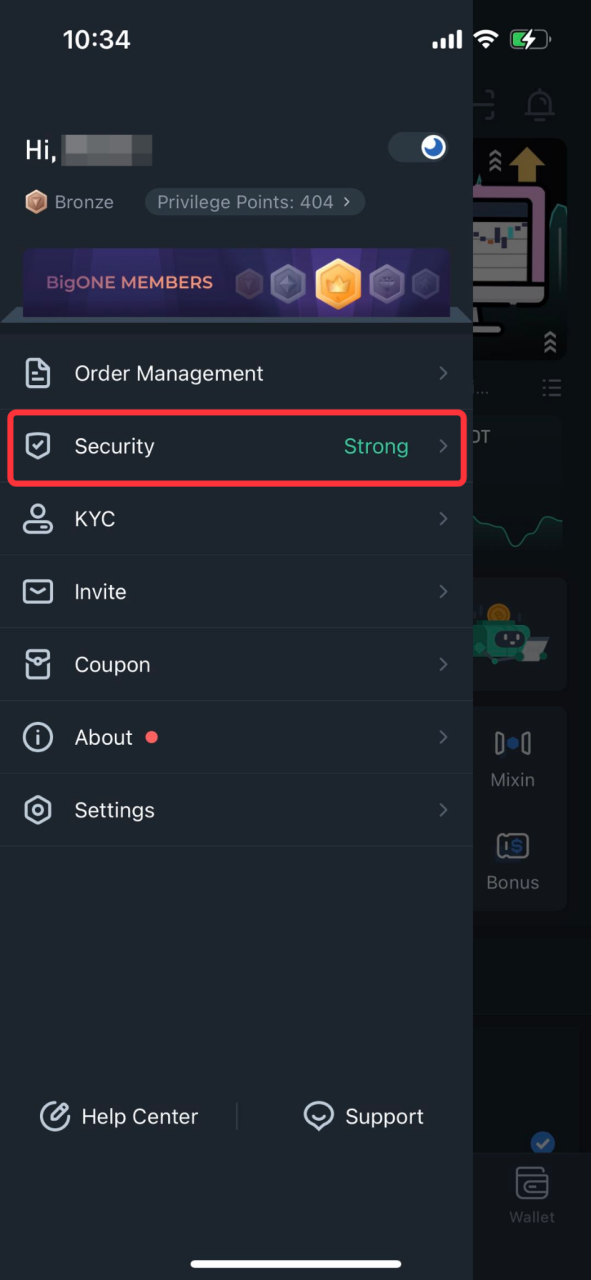
Go to Security
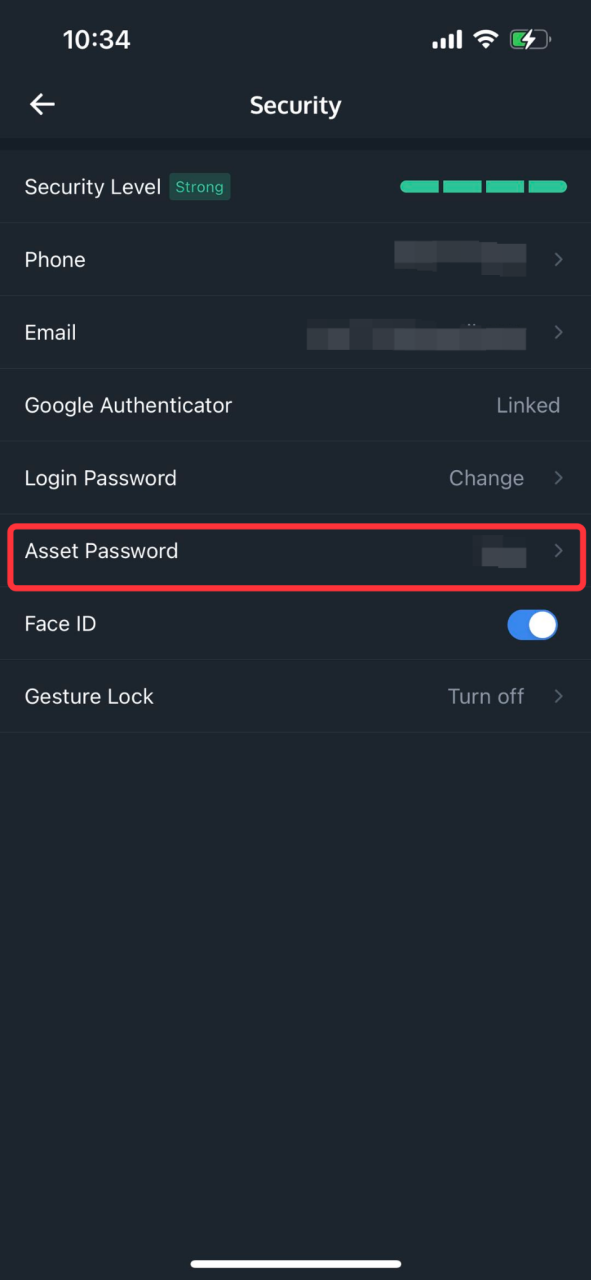
Click on Asset Password
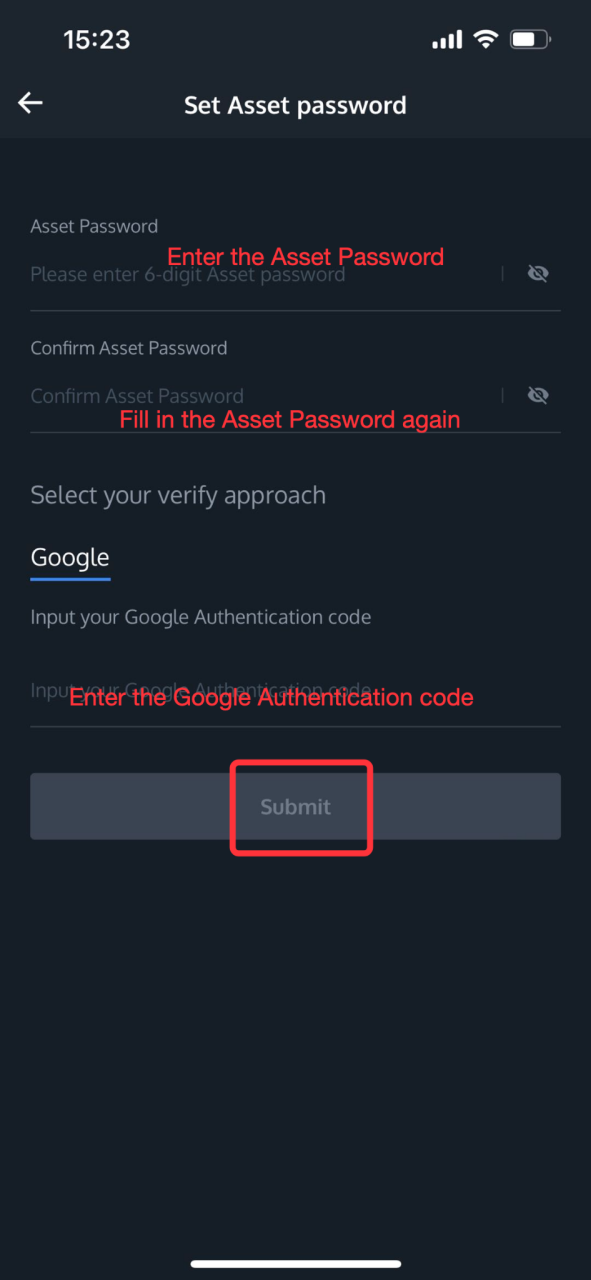
Enter the 6 digits Asset password you want to set and Google Authenticator Code, click "Submit" to finish setting the password.
Stay tuned to CoinCarp Social Media and Discuss with Us:
X (Twitter) | Telegram | Reddit
Download CoinCarp App Now: https://www.coincarp.com/app/


