
Fiat currencies
Crypto Currencies
No results for ""
We couldn't find anything matching your search.Try again with a different term.
How to Stake, Unstake & Manage Rewards on Binance.US

This brief guide will show you how to start staking, manage rewards, and unstake on Binance.US for both web and mobile app users. If you're looking for general information about staking on Binance.US including which cryptocurrencies are available for staking, what the rewards are, and other FAQs please see here. Otherwise, you can select which instructions you need below:
- How to start staking on Binance.US
- How to view & manage your staking rewards
- How to stop staking/unstake
*Note: Staking is only available to customers who have passed advanced verification. You can learn how to check your current verification status here.
How do I start staking on Binance.US?
- On web
- On app
On web
1. Log in to your account and visit the Binance.US Staking homepage.

2. Choose the cryptocurrency you want to stake from the tokens listed on the page. Please note to be eligible for staking activities, you must already hold the cryptocurrency you want to stake in your Wallet. For example, to stake BNB, your wallet must contain BNB funds as part of your available balance. For more information, learn How to Buy & Sell Crypto or How to Deposit Crypto.
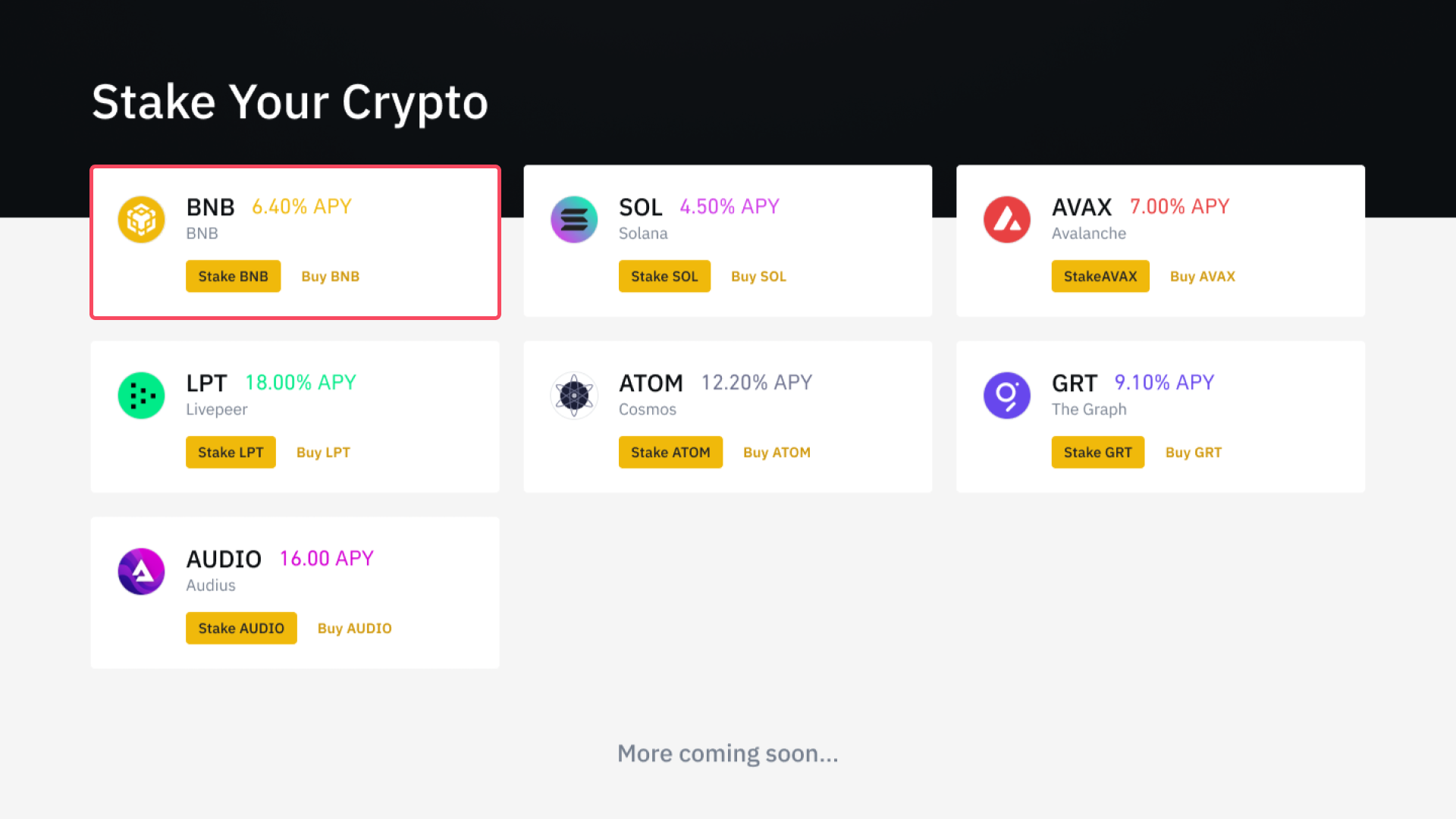
3. If you’re staking for the first time on Binance.US Staking, carefully read and follow the on-screen prompts before clicking Next.
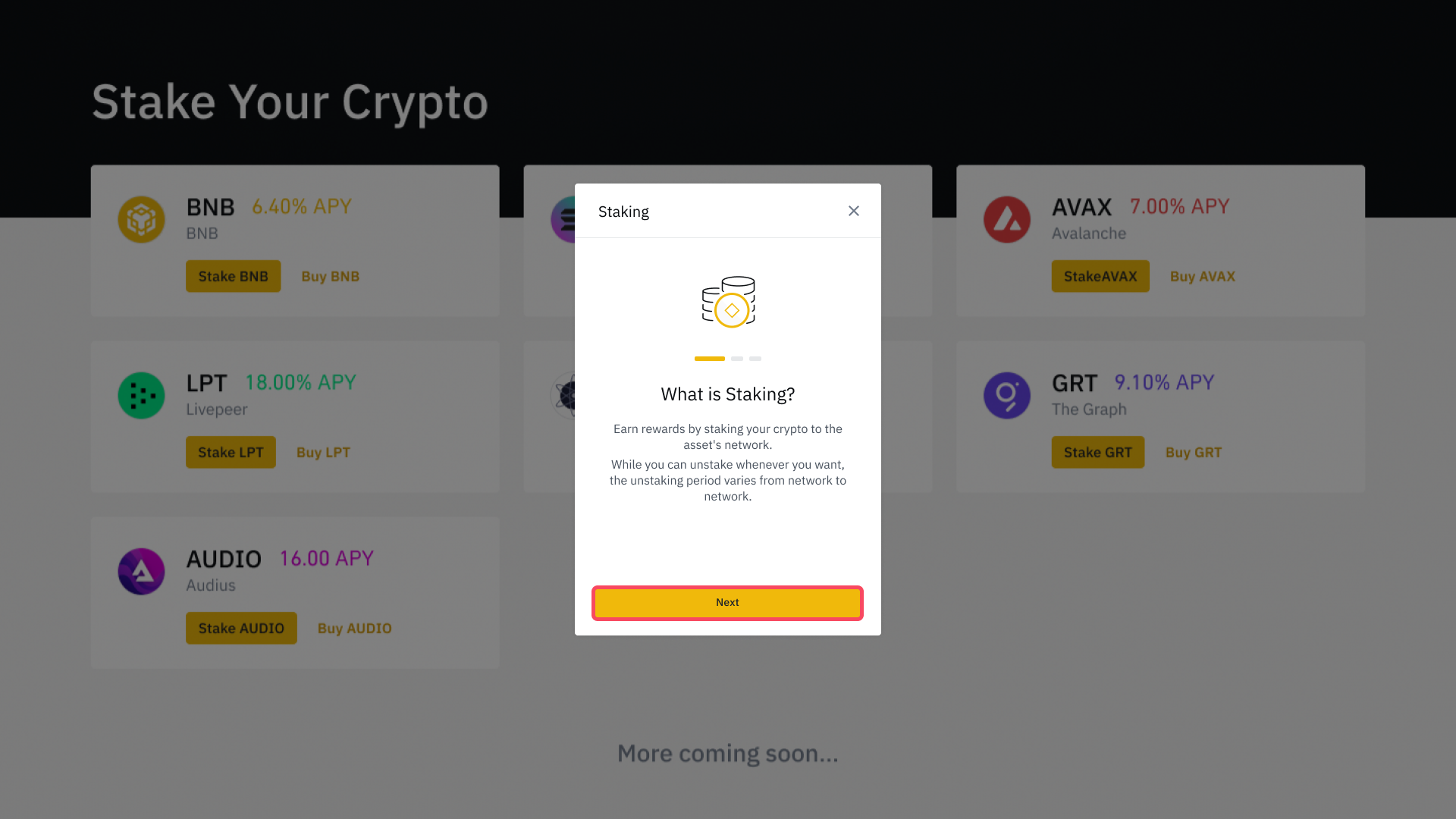
4. On the “Stake Crypto” pop-up, enter the amount of crypto you want to stake, or choose the percentage of your total assets that you’d like to stake.
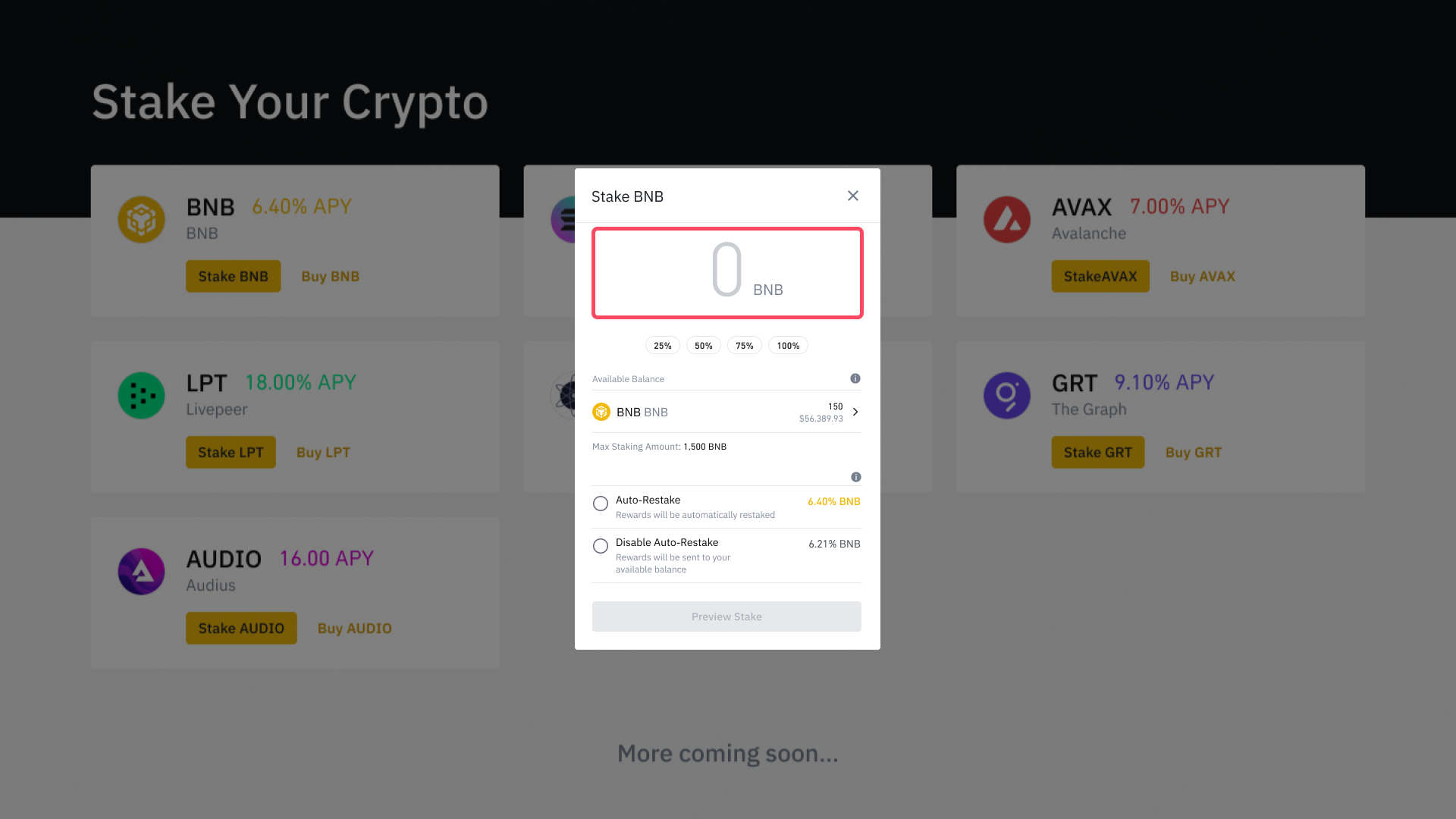
5. Choose Auto Restake if you want to automatically restake any token rewards accrued through staking, and effectively compound your staking rewards, or select Disable Auto Restake if you want your token rewards to be deposited to your wallet. Click Preview Stake once you’re satisfied with your choice.
6. On the “Confirm Staking” pop-up, carefully review your staking request. Please note that you will be unable to withdraw or trade your staking assets while it is being staked.
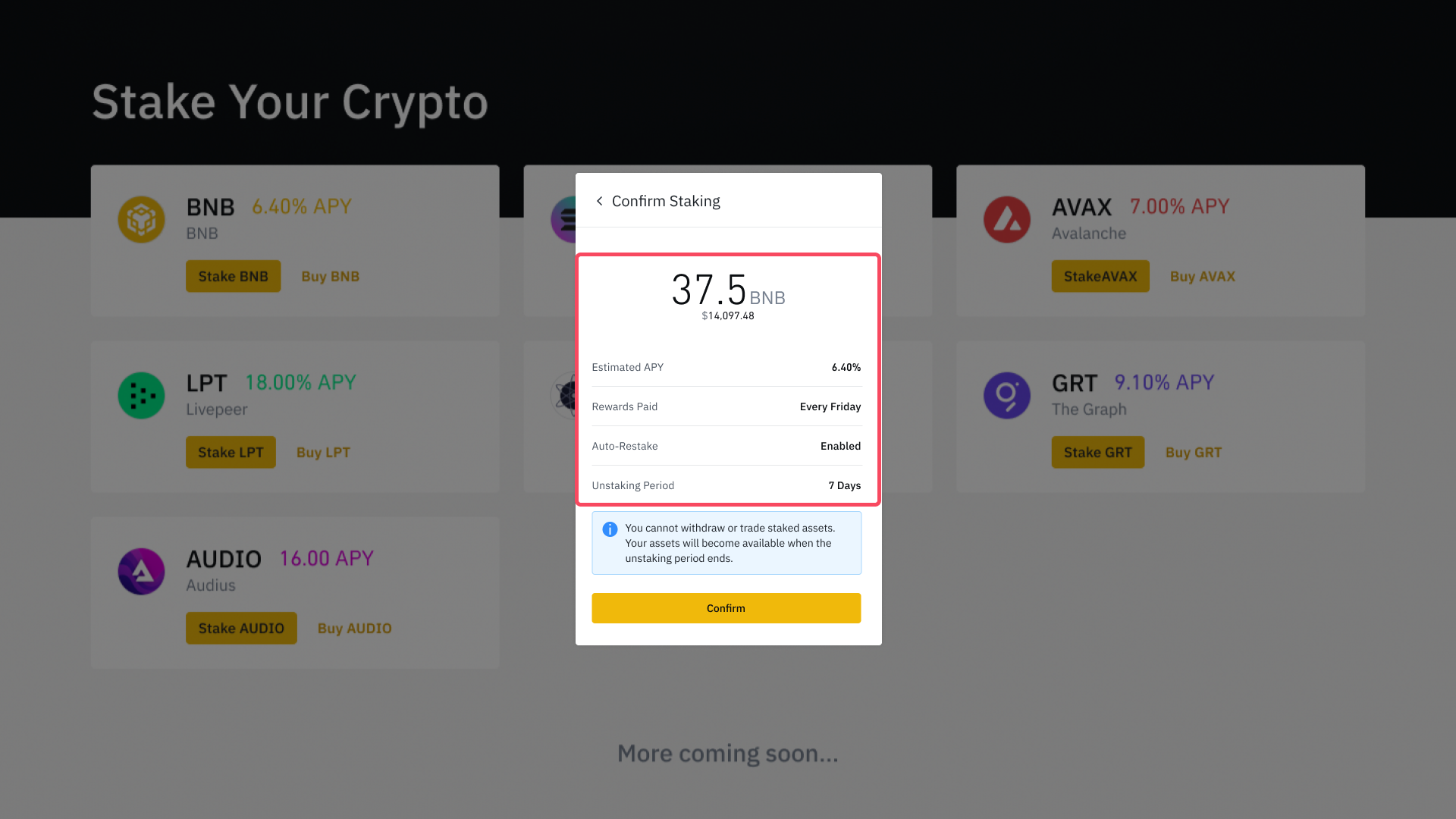
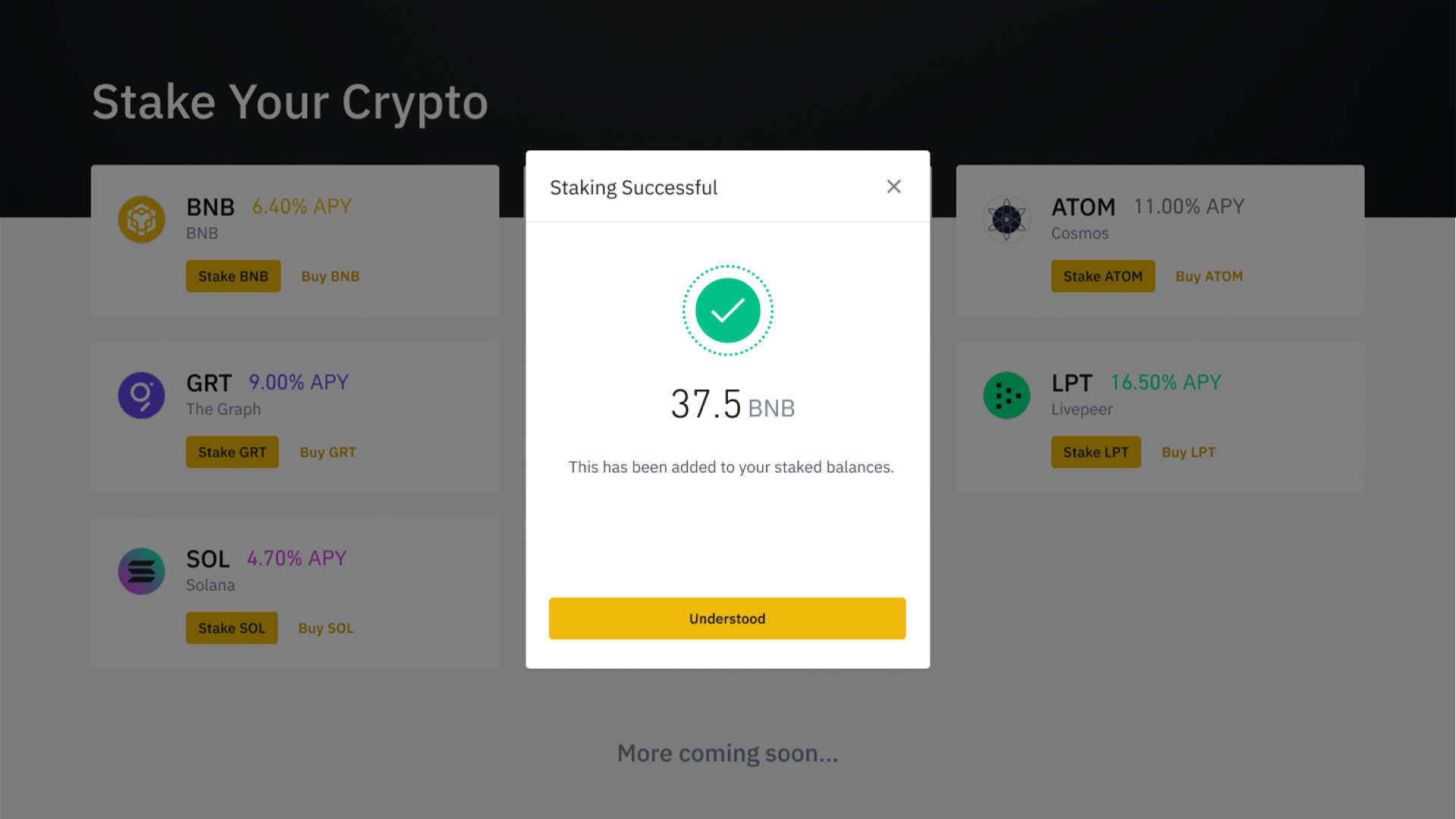
7. You will receive a confirmation once your asset has been successfully staked.
On app
1. Download or log in to the Binance.US app. To access all staking features, please update your Binance.US app to the latest version.
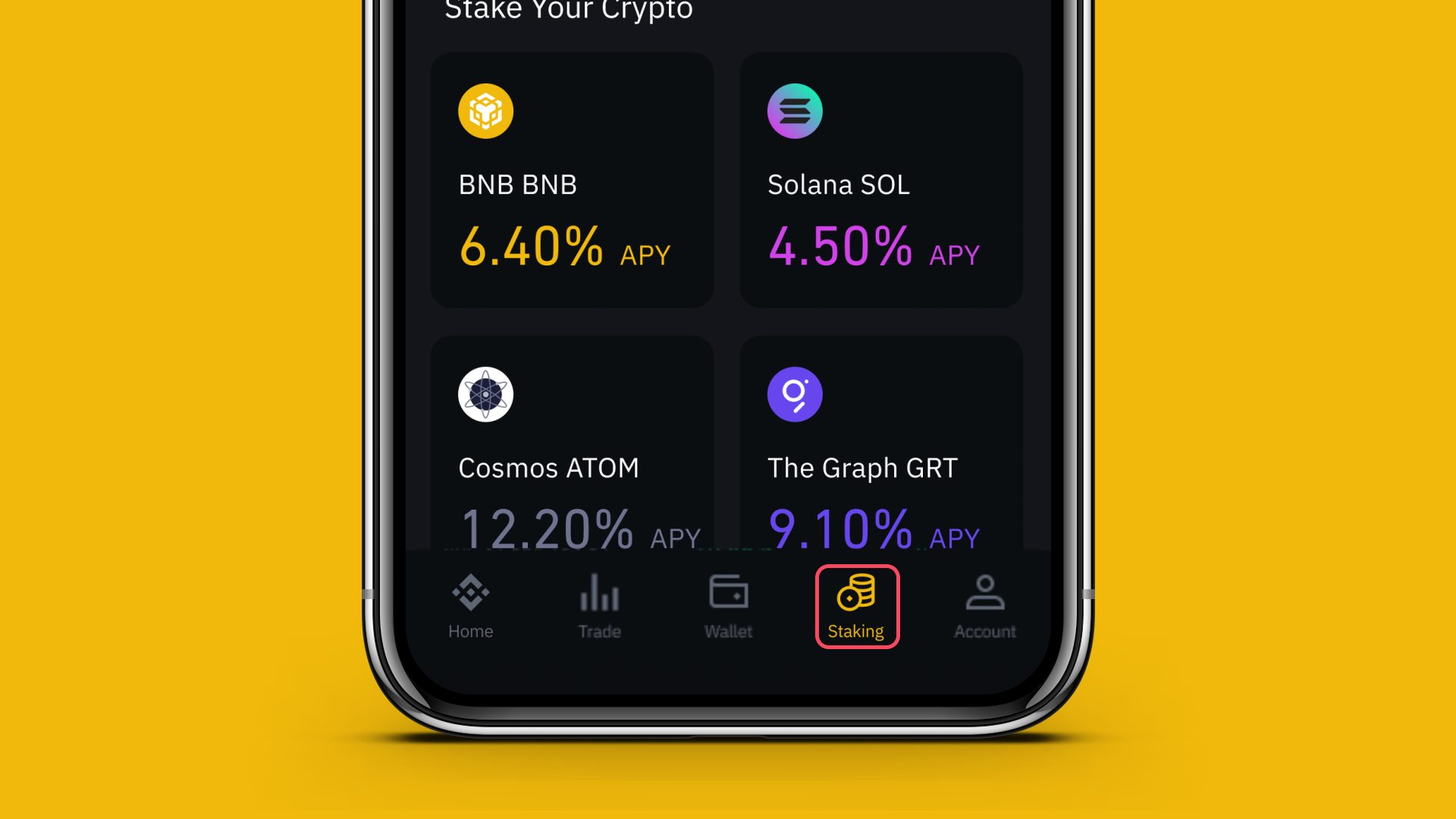
2. Tap the Staking icon, which appears as a stack of coins, on the bottom navigation bar.
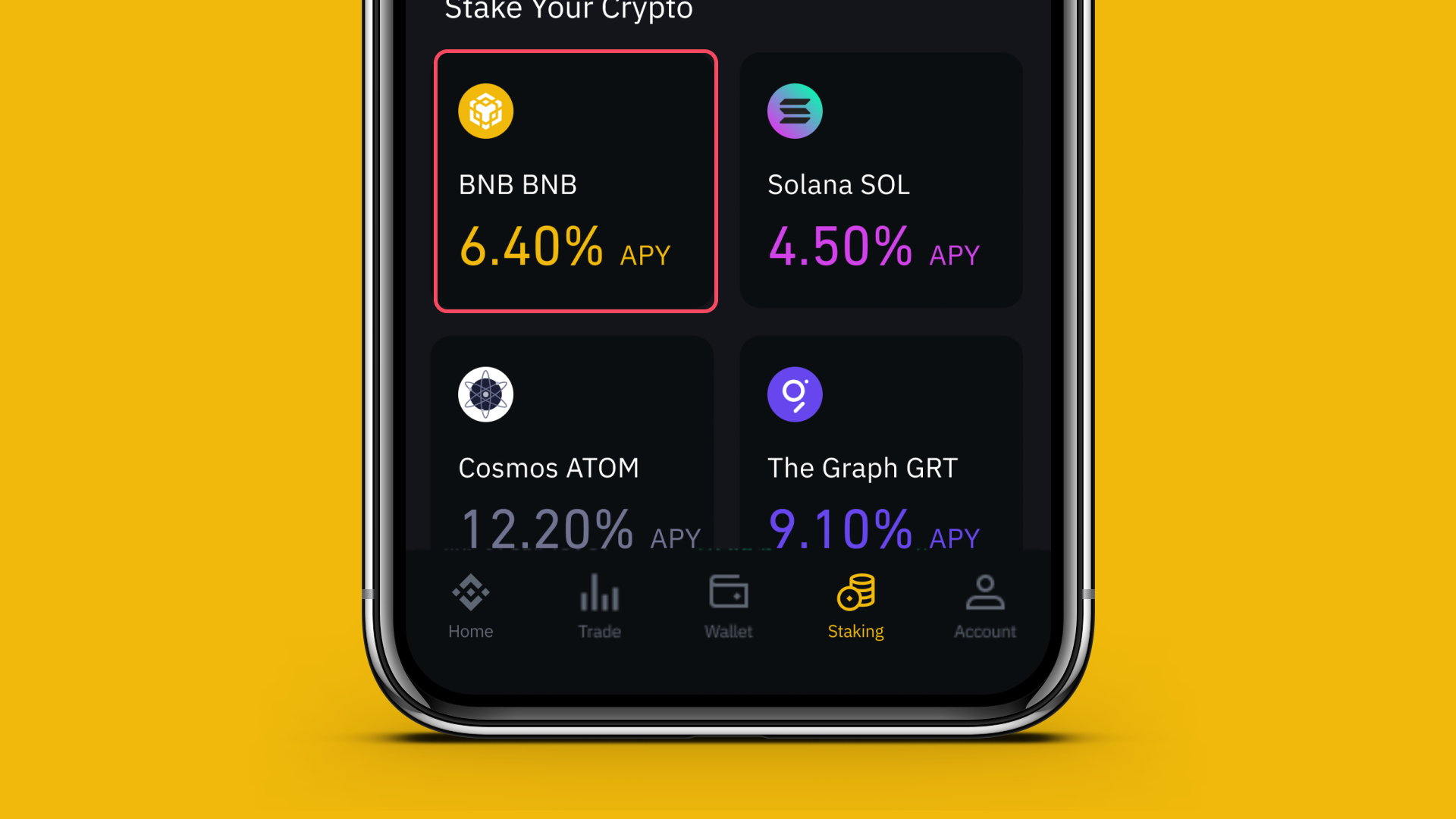
3. Choose the cryptocurrency you want to stake from the tokens listed on the page. Please note to be eligible for staking activities, you must already hold the cryptocurrency you want to stake in your Wallet. For example, to stake BNB, your wallet must contain BNB funds as part of your available balance. For more information, learn How to Buy & Sell Crypto or How to Deposit Crypto.
4. If you’re staking for the first time on Binance.US Staking, carefully read and follow the on-screen prompts before tapping Next.
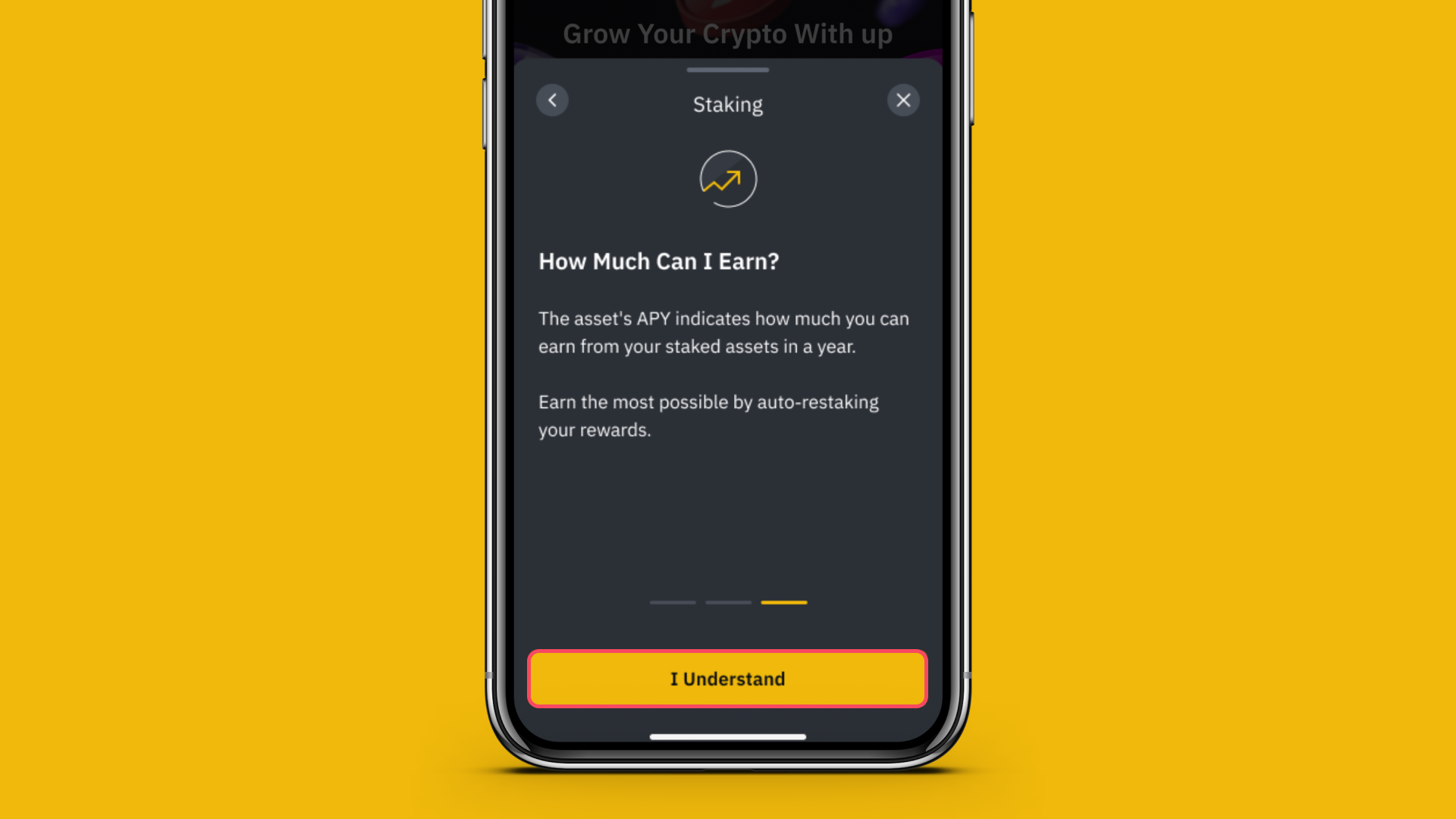
5. Enter the amount of crypto you want to stake, or choose the percentage of your total available balance that you’d like to stake.
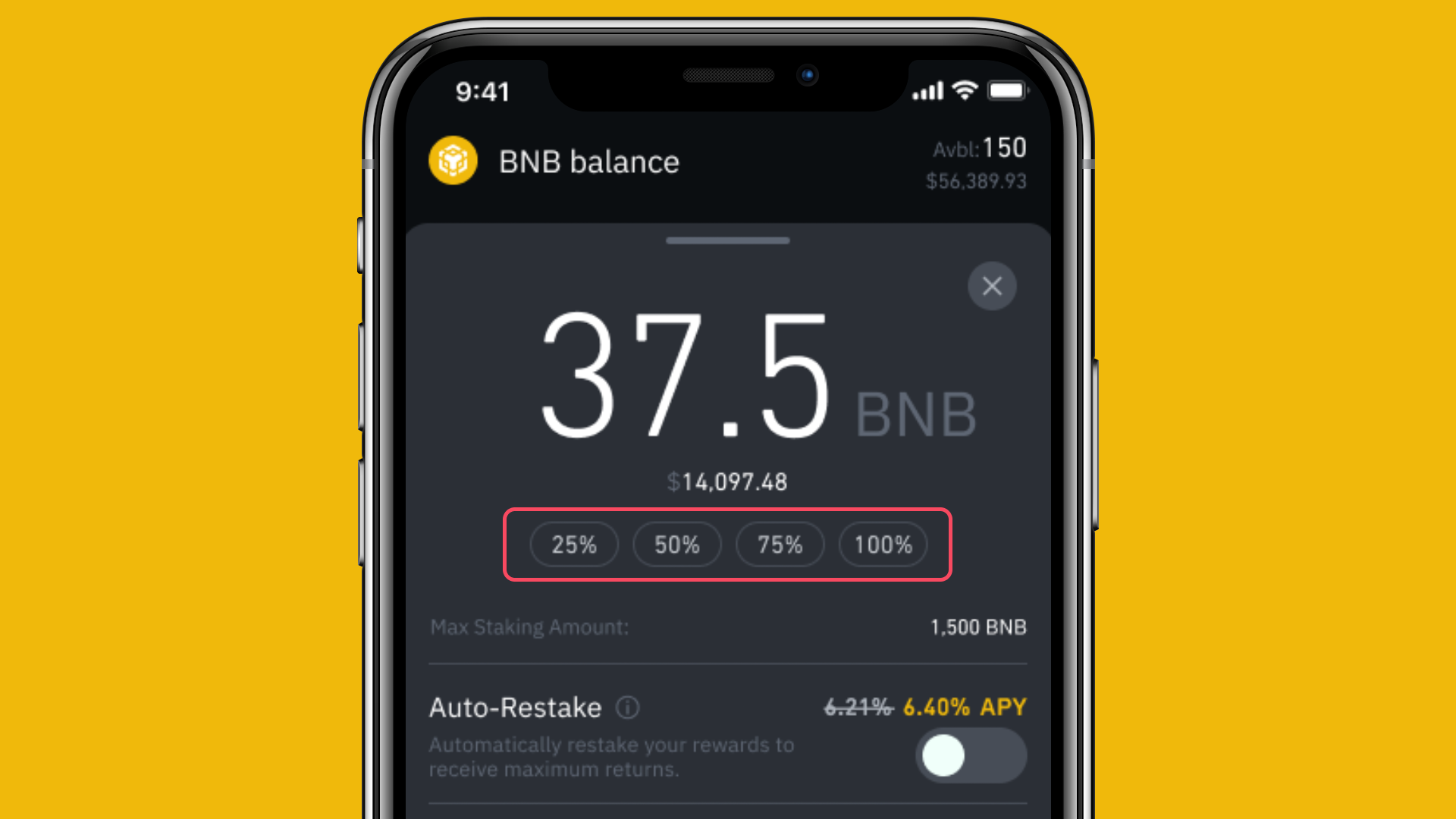
6. Toggle between Auto-Restake if you want to automatically restake any token rewards accrued through staking, and effectively compound your staking APY, or Disable Auto Restake if you want your token rewards to be deposited to your wallet. Click Preview Stake once you’re satisfied with your choice.

7. On the “Confirm Staking” pop-up, carefully review your staking request. Please note that you will be unable to access your staking assets while it is being staked.
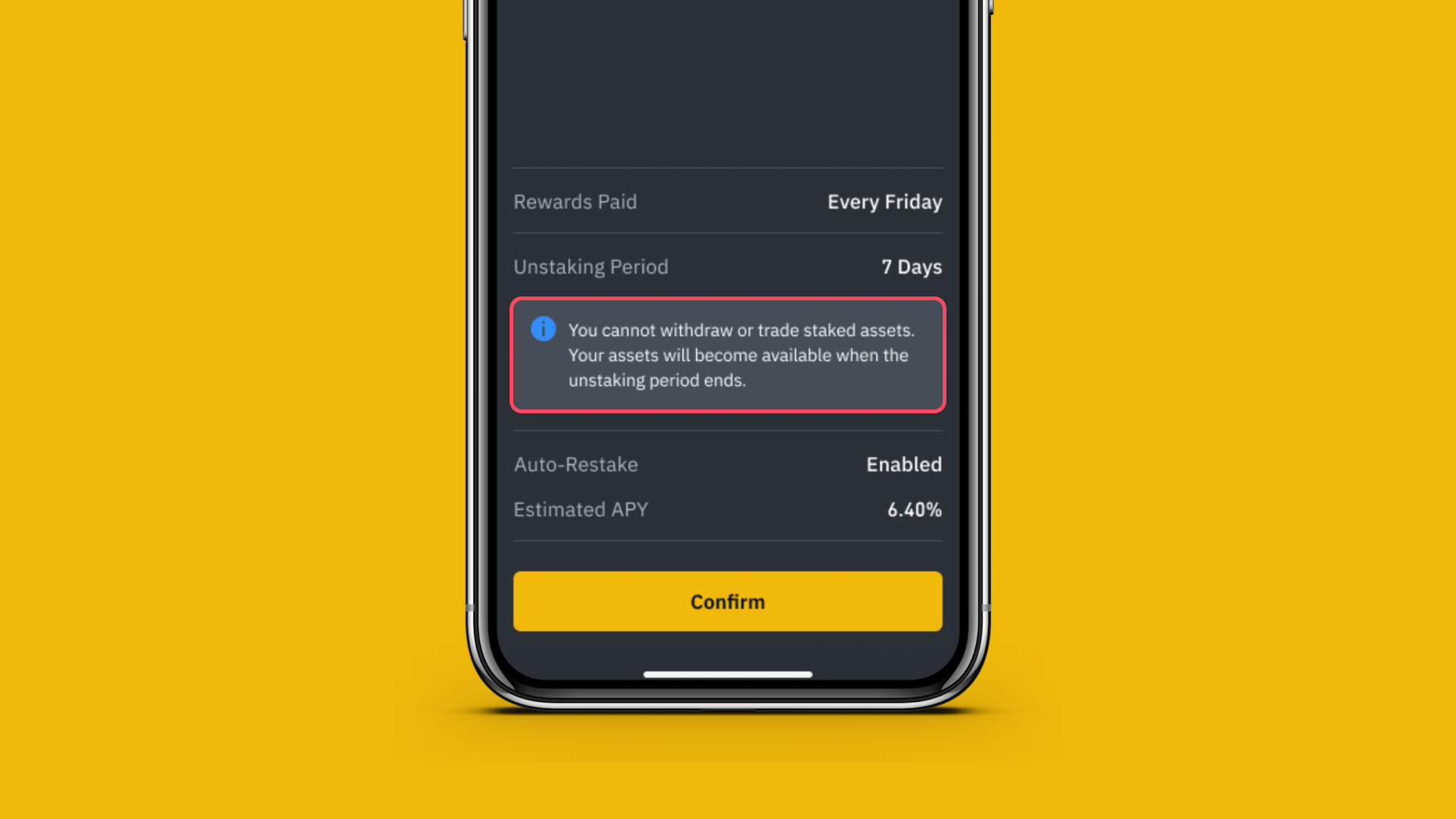
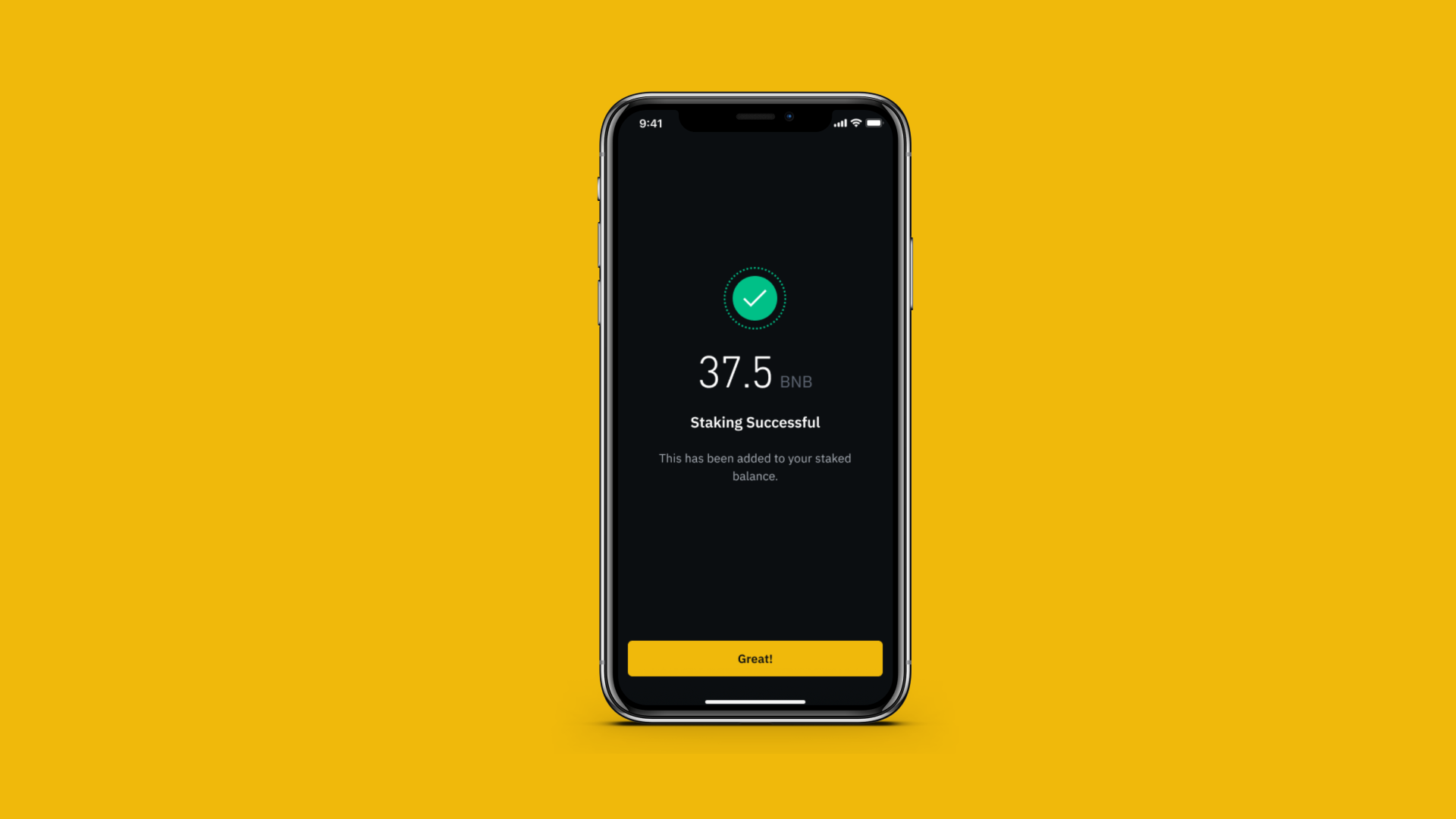
8. Once you have carefully reviewed the onscreen information, check the “I have read and accept the Staking Authorization” checkbox and click Confirm. You will receive a confirmation once your asset has been successfully staked.
How can I view and manage my staking rewards?
- On web
- On app
On web
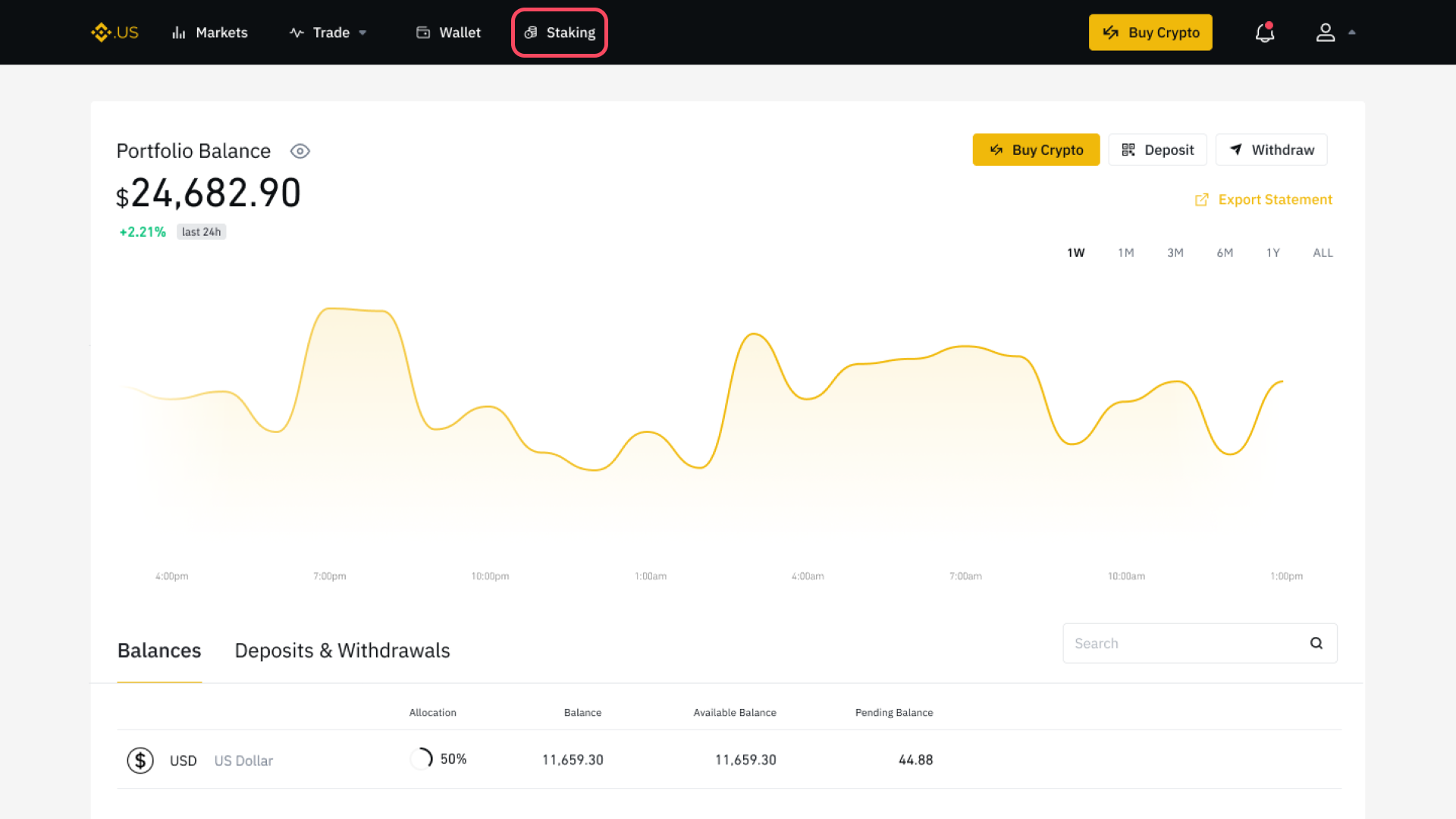
1. Log in and visit the Staking Dashboard to review your staked assets, staking balance, and total rewards.
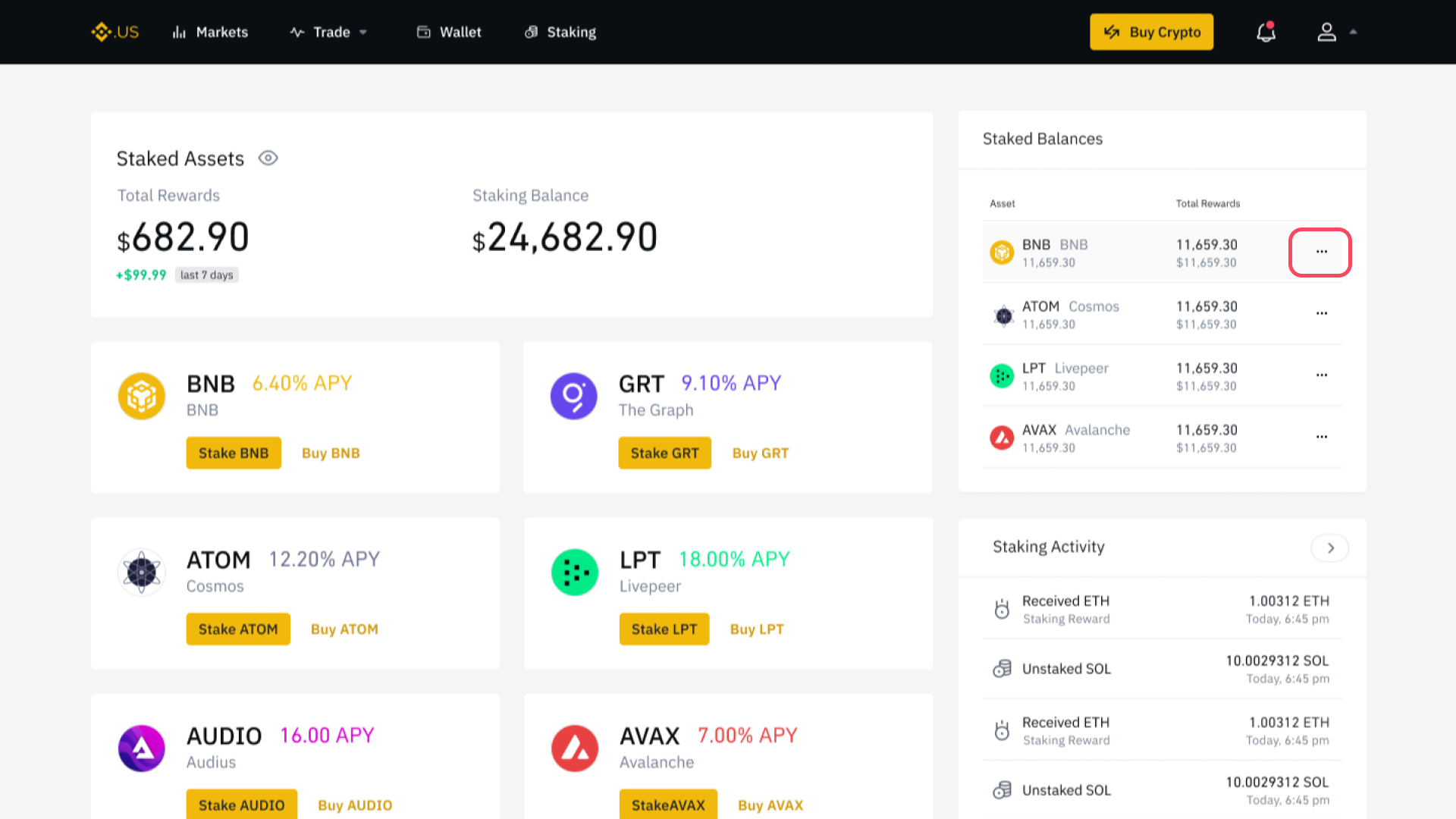
2. In the Staked Balances section on the top right side of the page, choose the asset you want to manage and click the icon with three dots to increase your staking amount or unstake your assets.
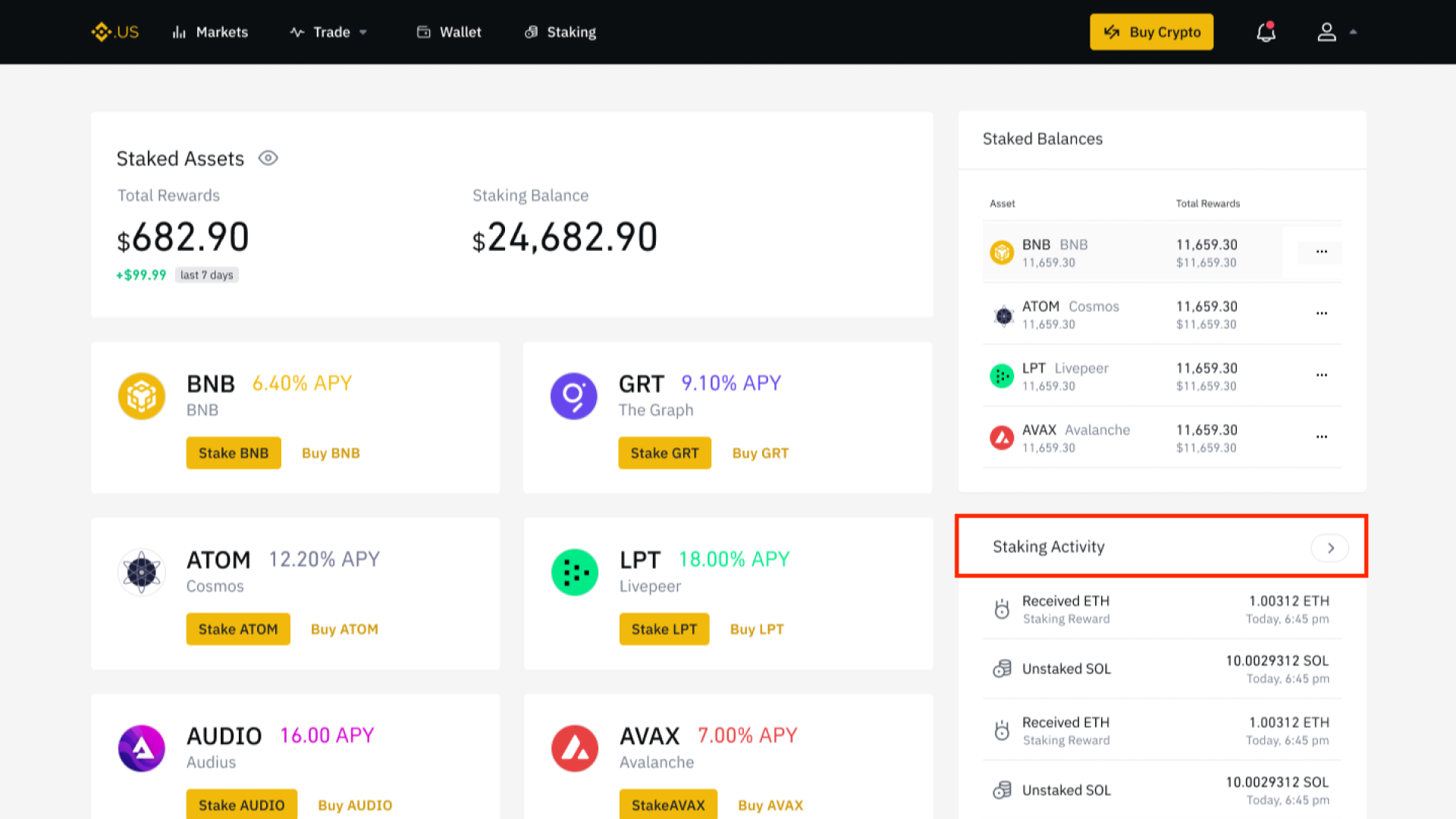
3. Review your recent staking activity in the Staking Activity section on the bottom right side of the page.
On app
1. Download or log in to the Binance.US app. To access all staking features, please update your Binance.US app to the latest version.
2. Tap the Staking icon, which appears as a stack of coins, on the bottom navigation bar.
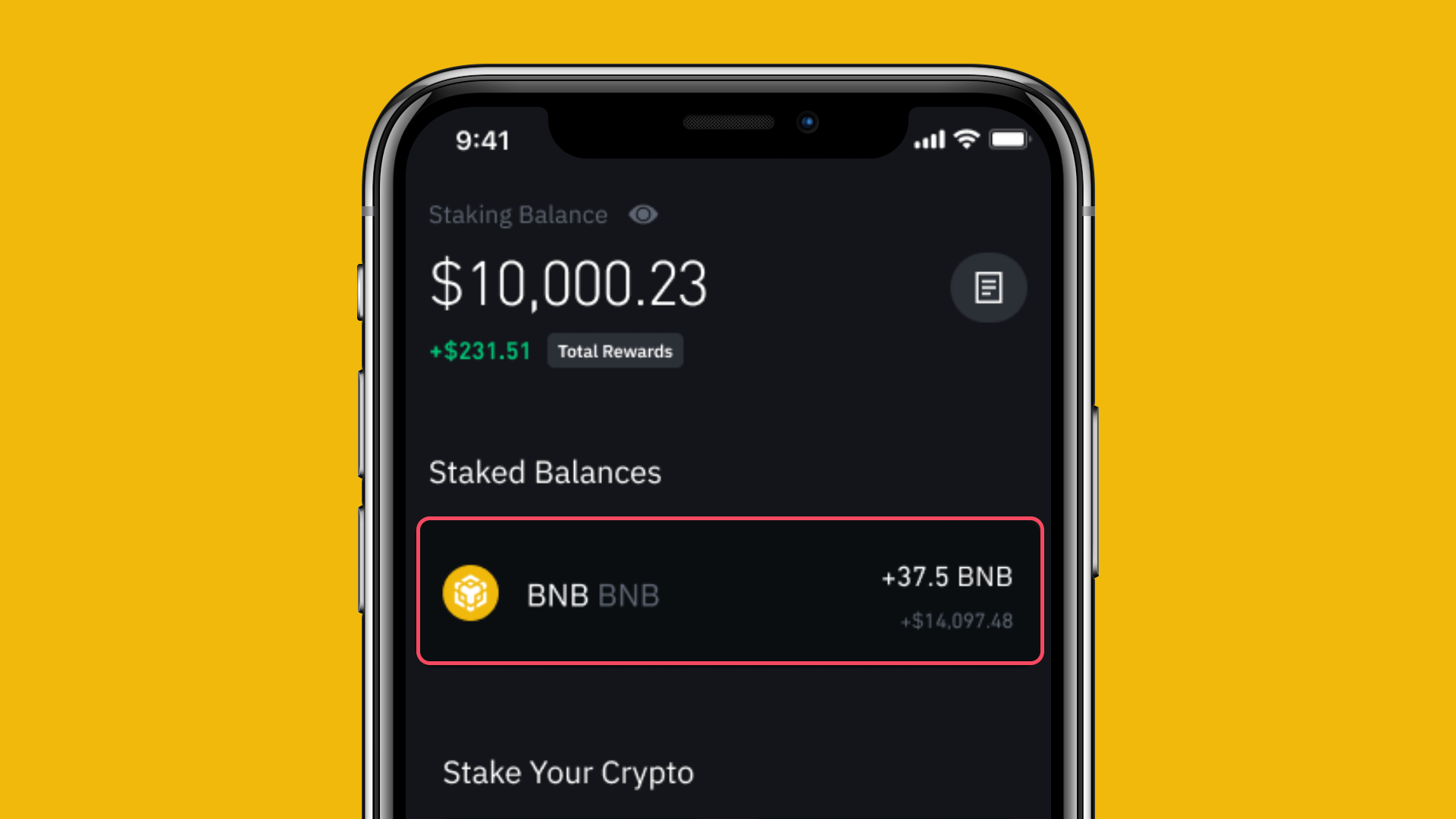
3. Under the section marked Staked Balances, review your staked assets, staking balance, and total rewards.
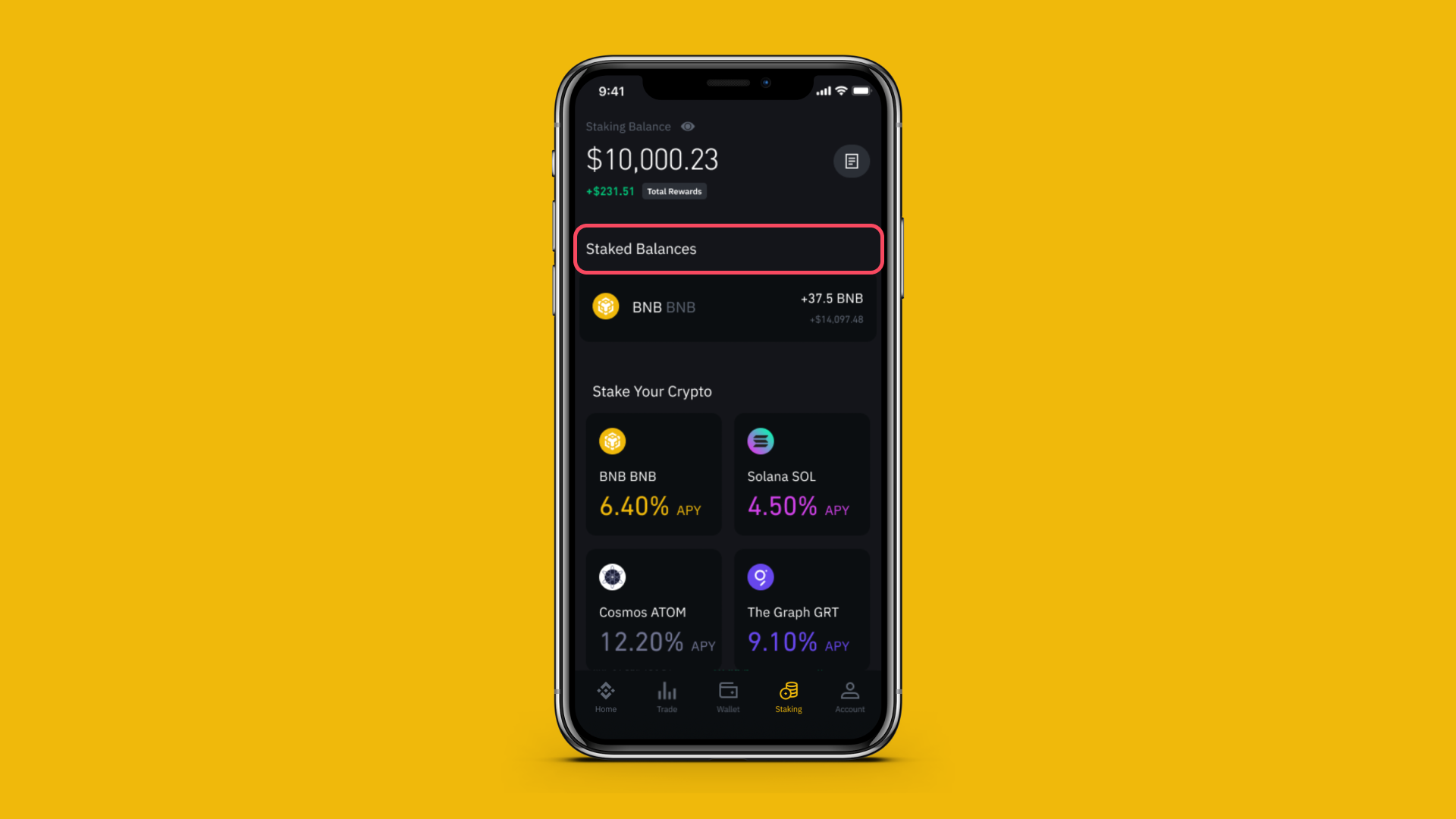
4. Tap the staked asset you want to manage to review the current APY, increase your staking amount, select “Auto-Restake” to automatically stake accrued staking rewards, or unstake your assets.
How can I stop staking / unstake?
- On web
- On app
On web
1. To unstake funds, log in and visit the Staking Dashboard to review your staking balance and total rewards.
2. In the Staked Balances section on the top right side of the page, choose the asset you want to unstake and click the icon with three dots.
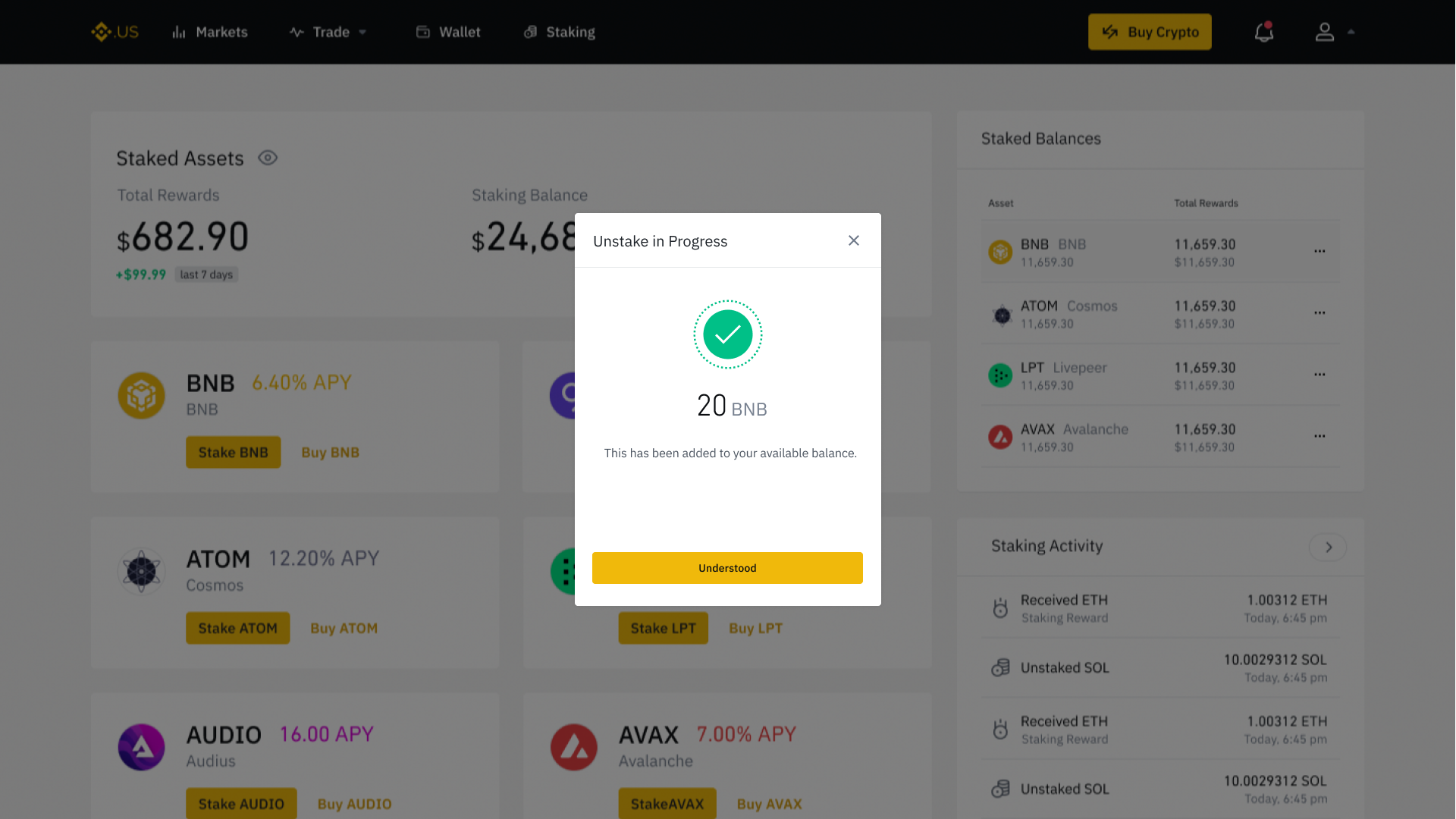
3. Click Unstake. If unstaking for the first time, carefully read and follow the onscreen prompts before clicking Understood to continue.
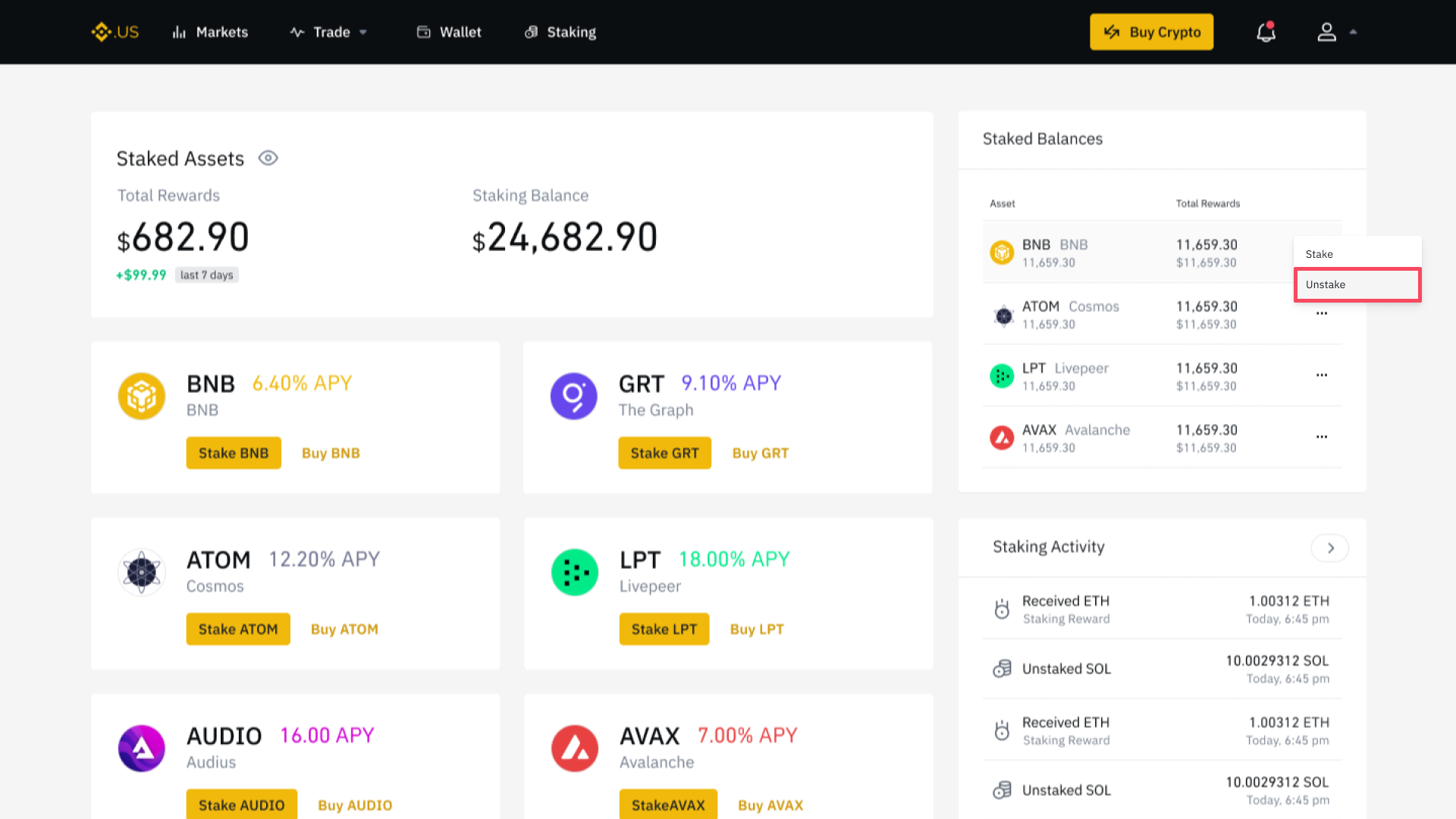
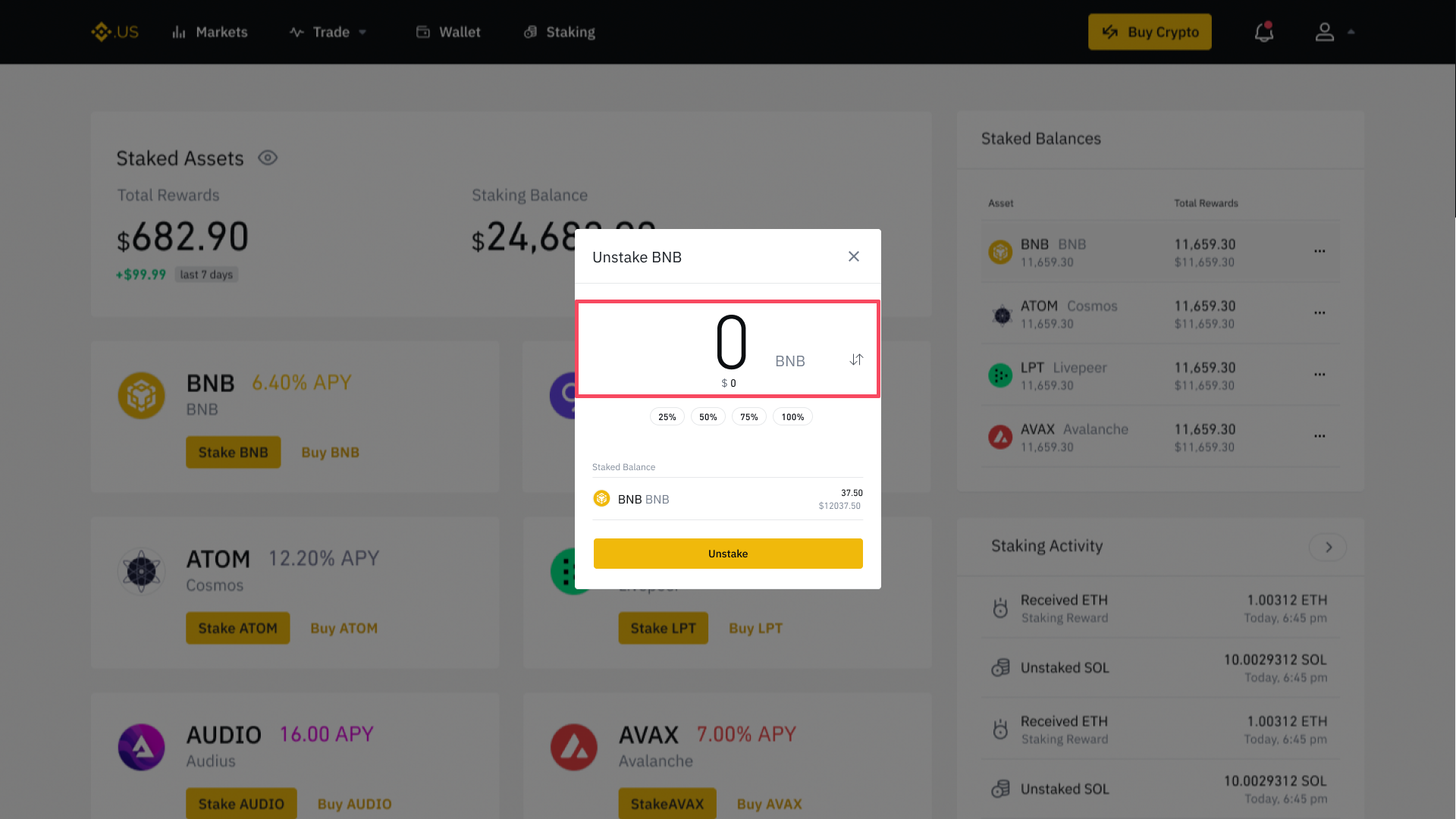
4. Enter the amount you want to unstake or choose the percentage of your total staked assets that you want to unstake. Click Unstake once you’re satisfied with your choice.
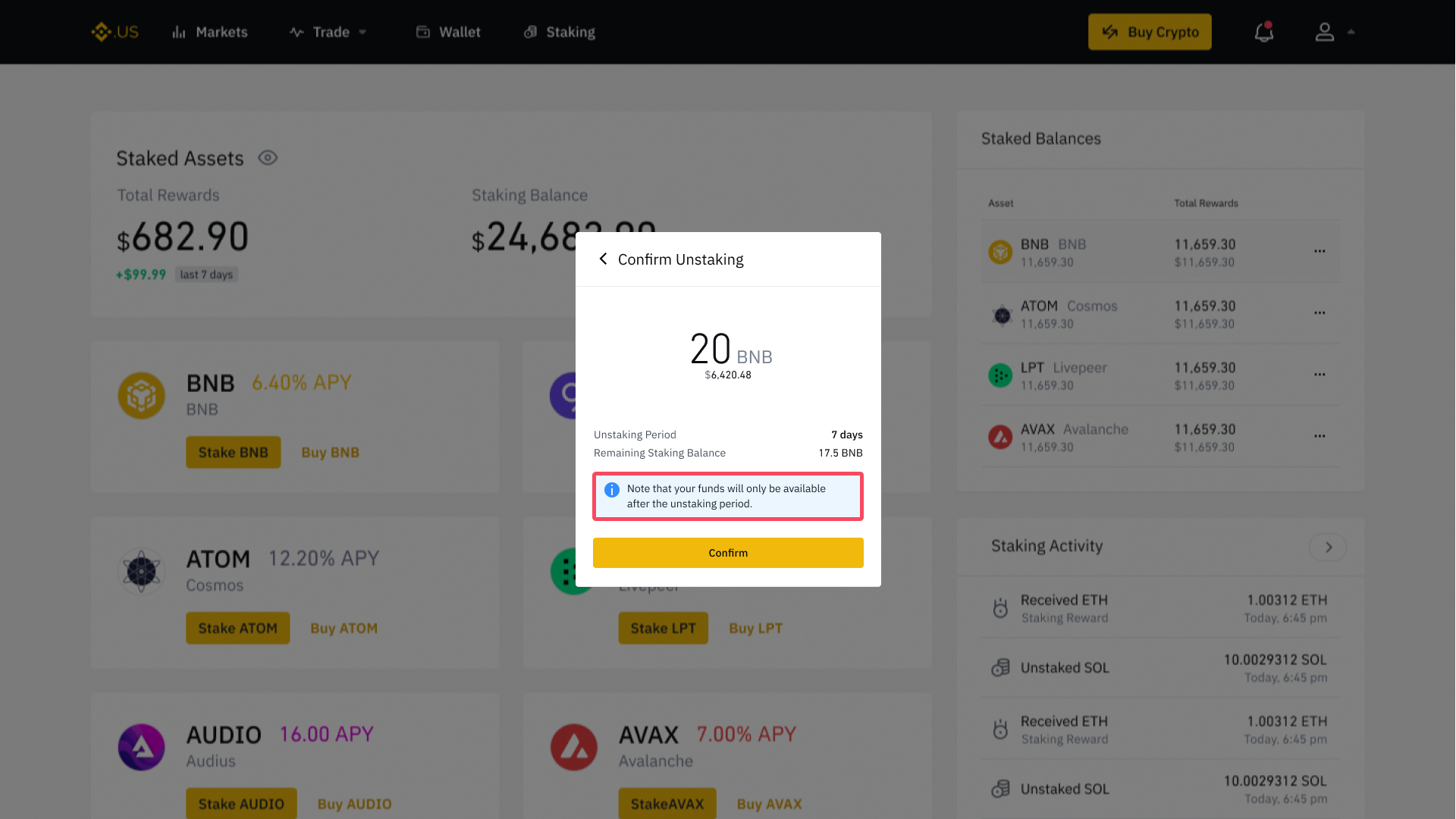
5. On the “Confirm Unstaking” pop-up, carefully review your unstaking request. Please note that you will be unable to access your staking assets during the unstaking process, which may vary in duration depending on the network.
6. Once you have carefully reviewed the onscreen information, check the “I have read and accept the Staking Authorization” checkbox and click Confirm. You will receive a confirmation once your asset has been successfully unstaked.
On app
1. Download or log in to the Binance.US app. To access all staking features, please update your Binance.US app to the latest version.
2. Tap the Staking icon, which appears as a stack of coins, on the bottom navigation bar.
3. Under the section marked Staked Balances, review your staked assets, staking balance, and total rewards.
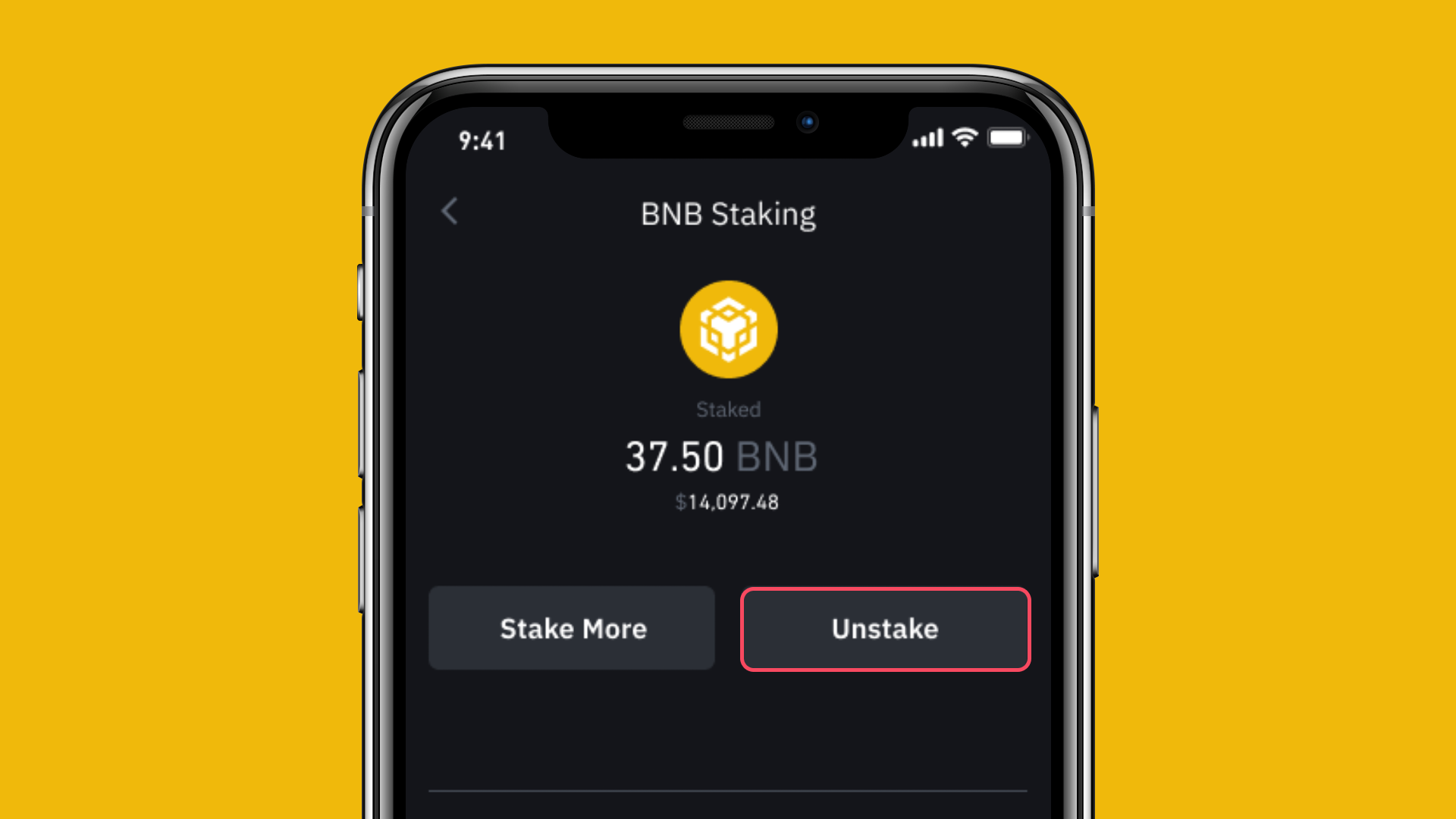
4. Tap the asset you want to unstake, then tap Unstake on the following screen.
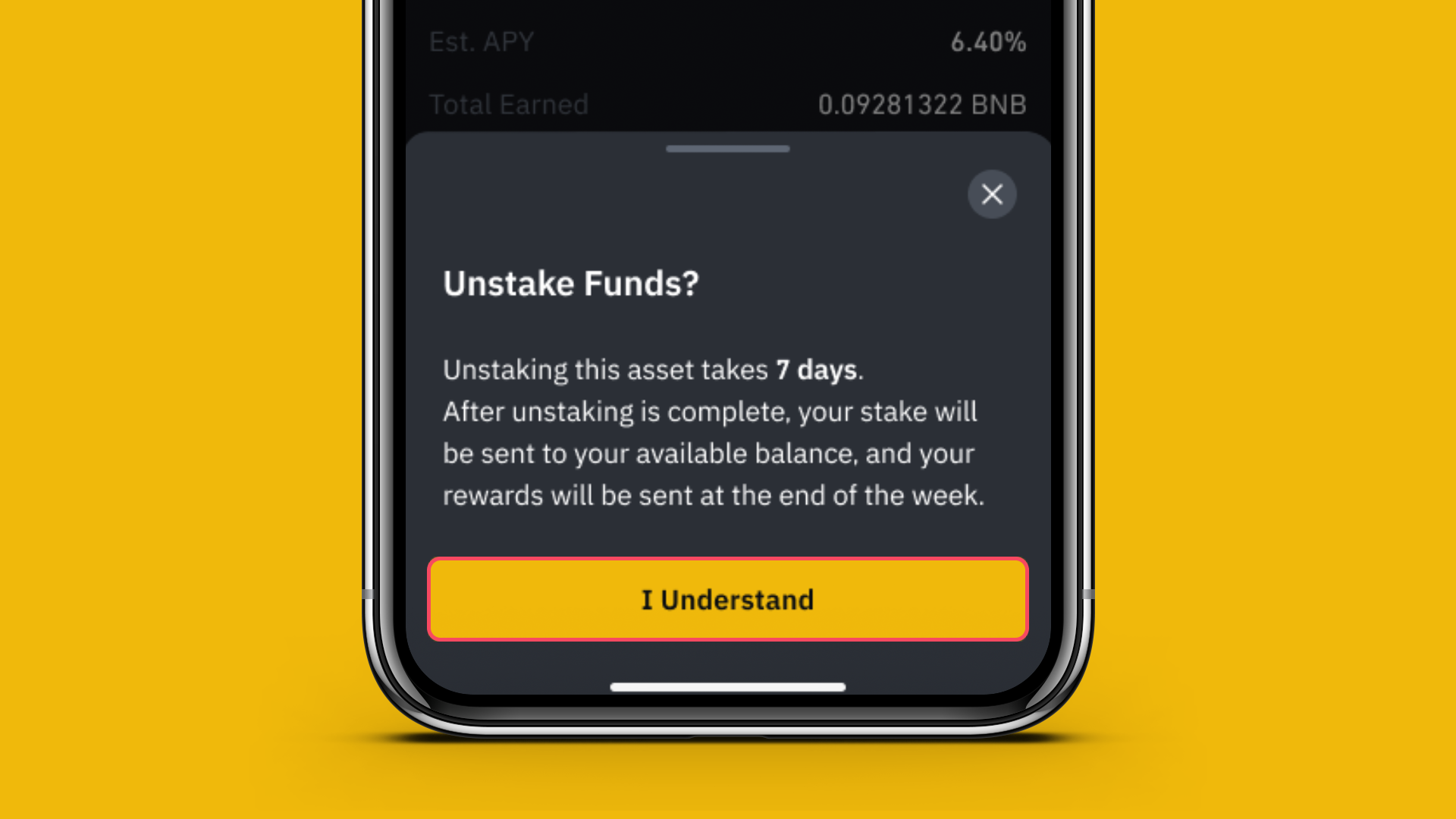
5. Carefully read and follow the onscreen prompts before clicking I Understand to continue.
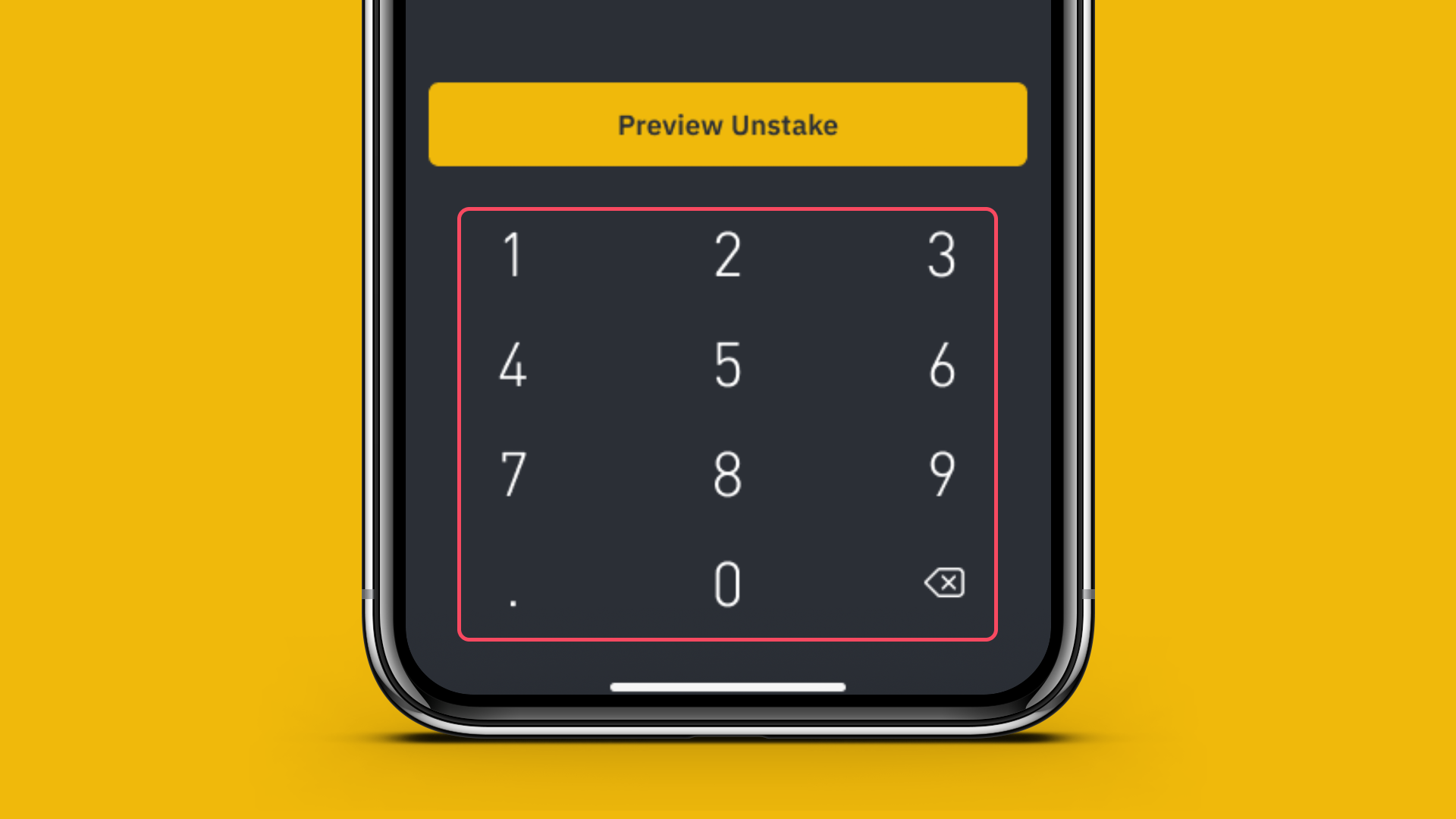
6. Enter the amount you want to unstake or choose the percentage of your total staked assets that you want to unstake. Click Preview Unstake once you’re satisfied with your choice.
7. On the “Confirm Unstaking” pop-up, carefully review your unstaking request. Please note that you will be unable to access your staking assets during the unstaking process, which may vary in duration depending on the network.
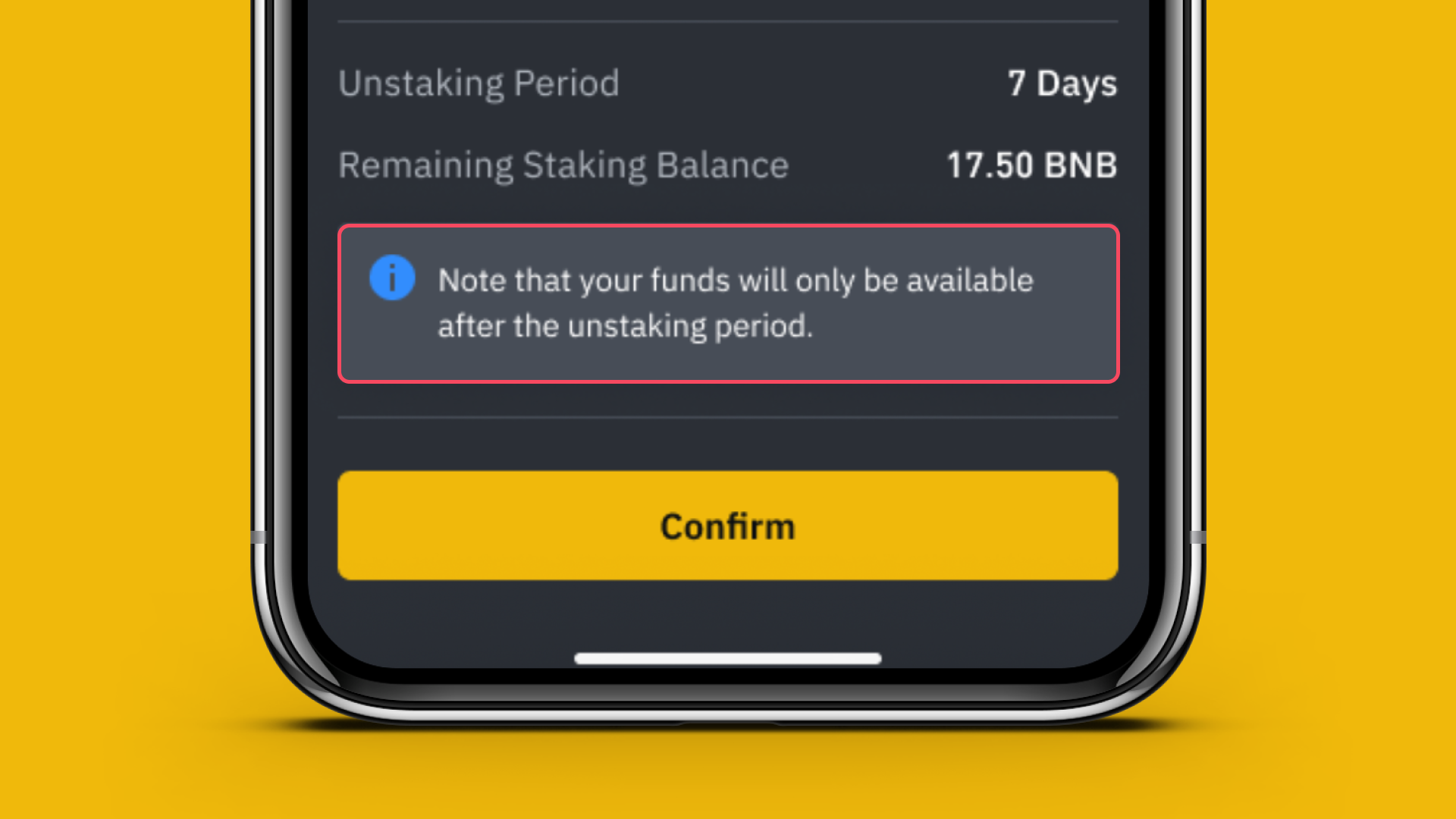
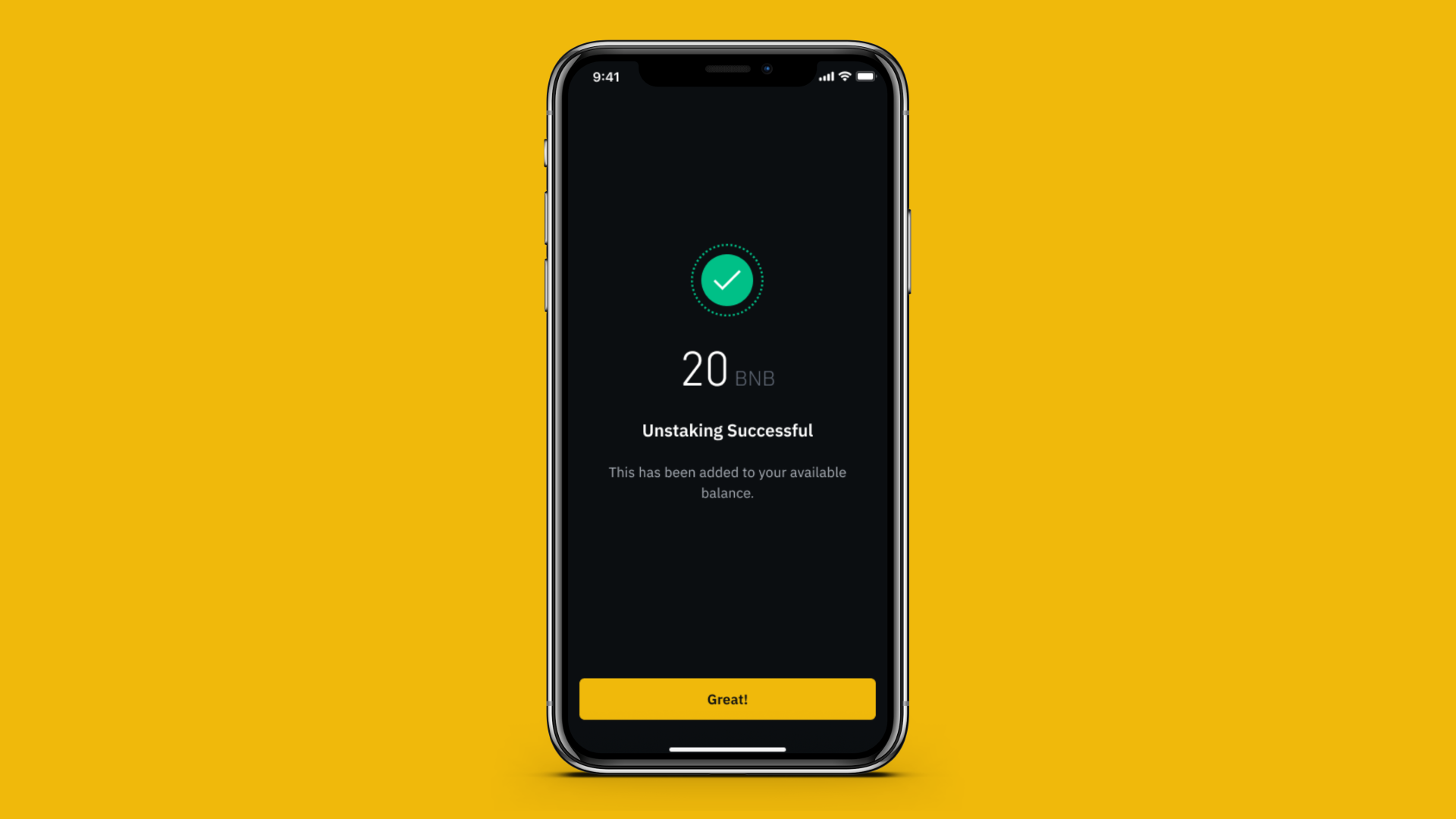
8. Once you have carefully reviewed the onscreen information, tap Confirm. You will receive a confirmation once your asset has been successfully unstaked.
Download the Binance.US app to trade on the go: iOS | Android
Follow us on social media to stay up to date with Binance.US news and announcements:
Telegram
Youtube
Discord
Risk warning: Buying, selling, and holding cryptocurrencies are activities that are subject to high market risk. The volatile and unpredictable nature of the price of cryptocurrencies may result in a significant loss. Binance.US is not responsible for any loss that you may incur from price fluctuations when you buy, sell, or hold cryptocurrencies. Please refer to our Terms of Use for more information.
Disclaimer: Staking Rewards are not guaranteed and are subject to change at any time and in the sole absolute discretion of Binance.US. For more information, please see the Staking Services section of our Terms of Use.
Stay tuned to CoinCarp Social Media and Discuss with Us:
X (Twitter) | Telegram | Reddit
Download CoinCarp App Now: https://www.coincarp.com/app/


